KR Editor how-to: from the cable to the stage, step by step
How to use KR Editor, step by step: connect the keyboard, edit a Program and a Combi, scenes, KARMA, pedal, saving and writing to the keyboard, Set List and Perform, Files, sounds from another model and DX7.
Before you start
KR Editor edits and organizes the sounds of your keyboard on iPad and Mac. On iPhone it becomes the stage, with your Set List and scenes. The app makes no sound: the keyboard does.
- 1A KRONOS (1, 2 or 3).
- 2A USB cable to the keyboard’s USB B port. On an iPad with USB-C, a USB-C to USB-B cable; a Mac recognizes the keyboard on its own.
- 3On the keyboard, GLOBAL › MIDI › Enable Exclusive turned on.
- 4A recent backup of the keyboard (DISK › Save All) before you touch its memory. The app keeps a copy of each sound before writing over it, but a backup is a backup.
Tip:Away from the keyboard you can sort everything in a .PCG backup: open it, compare, build the Set List. The app also keeps the “Keyboard Memory” from the last time the cable was connected, and you can work on it without the keyboard: whatever you change is marked “to write” and goes to the keyboard when the cable is back. With the same Apple ID and iCloud on, that Memory passes to your other devices on its own (the newest version wins). Only reading the memory for the first time, hearing the sound change and writing to it need the cable.
Connect the keyboard to the app
- 1Connect the USB cable between the keyboard and your device. On the keyboard, check GLOBAL › MIDI › Enable Exclusive and leave it in PROGRAM, COMBINATION or SET LIST: in SEQUENCER, GLOBAL, DISK or SAMPLING the app does not touch the keyboard and tells you so.
- 2The app notices the keyboard right away: the Tools icon (wrench and screwdriver, top right) gets a green dot, and a green light turns on next to the sound’s name. A dot with just a ring means the keyboard is connected but “Follow the keyboard” is off. A gray dot means no keyboard.
- 3The first time, the app reads the whole keyboard memory on its own, in about 1 minute, with a note at the bottom of the screen (and a progress bar with a “Stop” button in the “Files” screen). Then it keeps a mirror copy of the memory, the file “Teclado espelho.PCG”, and, next time, only checks it and re-reads the banks that changed, in seconds.
- 4In the Tools menu, the top row has “Fetch from the keyboard” (redoes the memory check; if you have changes that were not written yet, the app asks first and offers “Save backup first…”), “Read from the keyboard” (brings in the sound that is on the keyboard’s screen) and “Keyboard & MIDI…” (shows the port and the latest messages from the keyboard). Right below, “Follow the keyboard” (on by default) makes the app follow the keyboard’s mode and sound. To read everything again, hold the fetch icon in the “Files” screen and choose “Read the whole keyboard”.
- 5To check that the keyboard is talking to the app, open Tools › “Messages…”: the last line reads, for example, “Keyboard on · in PROGRAM · channel 1”.
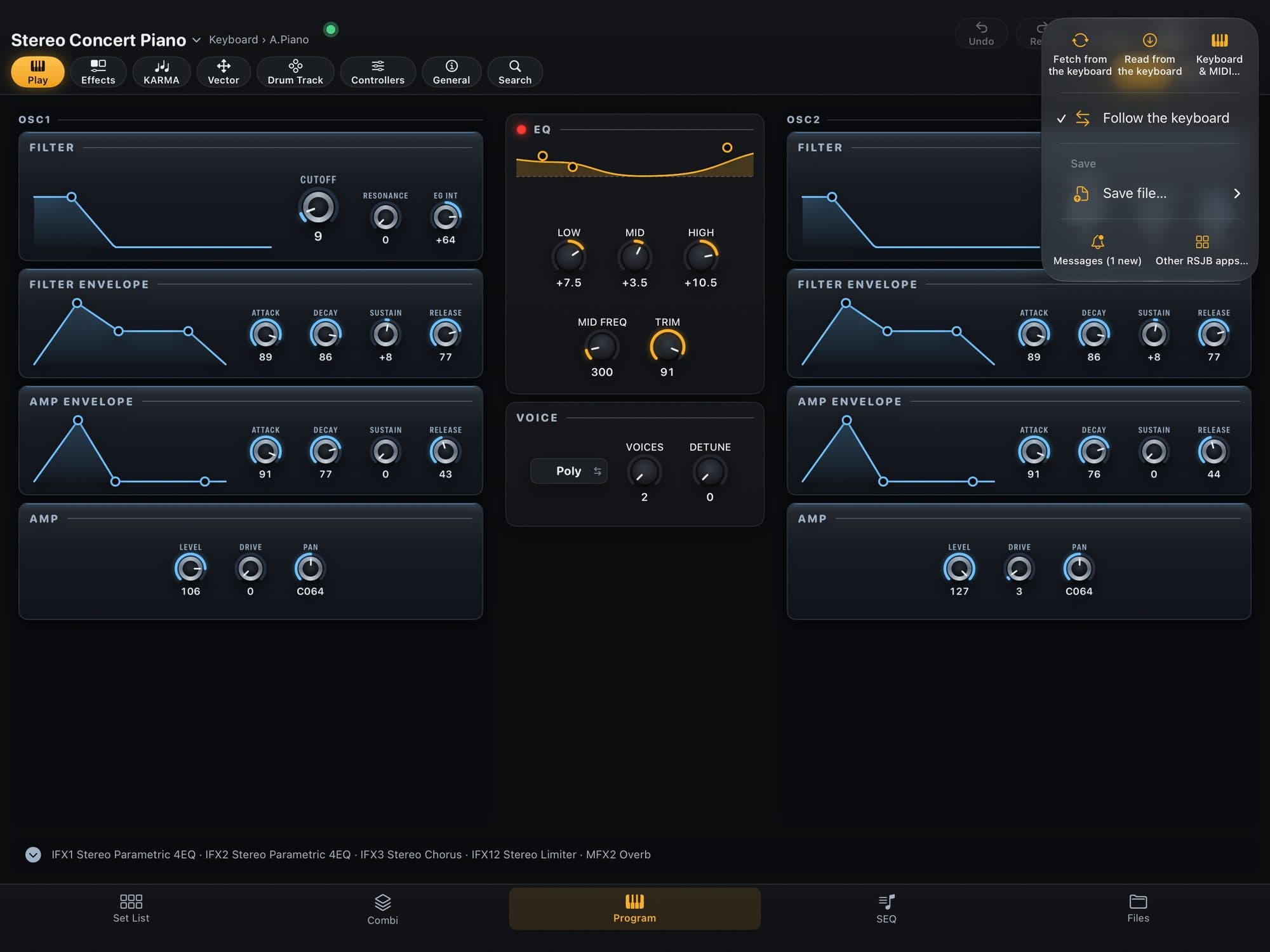
Tip:In Tools › “Keyboard & MIDI…”, the “Latest messages from the keyboard” list shows whether the cable is alive; “Send to” and “Keyboard Global MIDI channel” are there too. In a narrow window, the read-everything-again command lives in the Tools menu of the “Files” screen.
Open a .PCG backup, no keyboard needed
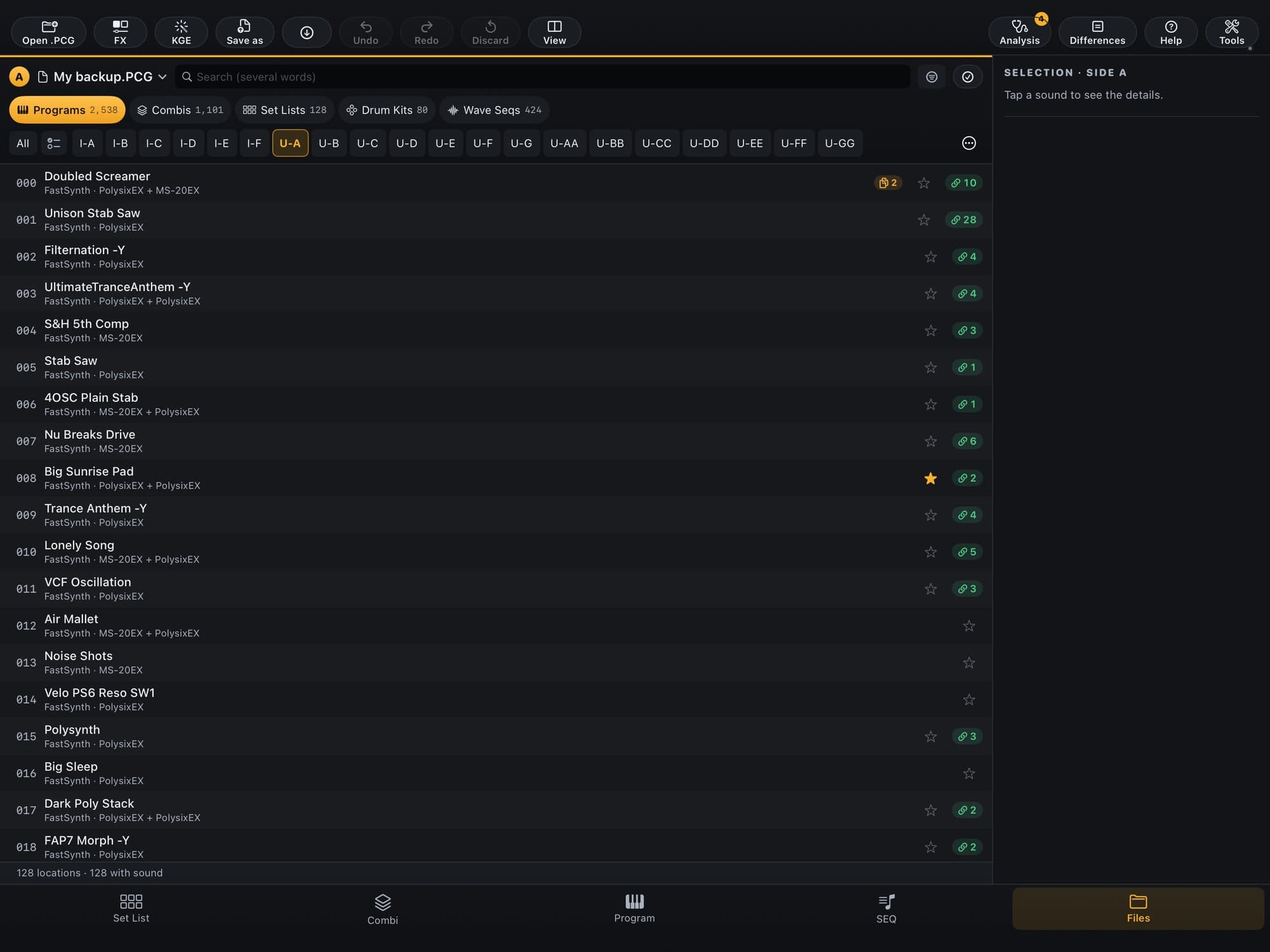
- 1Tap “Files” in the bottom bar and then the “Open .PCG…” icon (folder with a +, top left). On the Mac, ⌘O. You can also drop the .PCG on the app window or, on iPad and iPhone, share the file with KR Editor (Open with…). In a narrow window, “Open .PCG…” lives in the Tools menu; on iPhone, in the document icon at the top.
- 2Pick the file. On the Mac the panel accepts one or more .PCG files, from your keyboard or from another model; on iPad, the system Files picker.
- 3The file becomes the app’s source: Program, Combi and Set List now show what is in it, and next time the app reopens the last .PCG. In the “Files” screen it shows on the active side.
- 4To switch files, use the file menu at the top of the lists (it also has “Open .PCG…” and “Close file”) or the file name at the top of each side of the “Files” screen. To take a file off the list, use “Close file” (or “Close…” › “Close all”): if there are unsaved changes, the app asks first.
- 5Play freely: the .PCG on disk is never replaced. To keep what you did, tap Tools › “Save file…” (or the Save as icon, in “Files”): the app always creates a new file.
Tip:On the Mac, if you quit the app with changes that are neither on the keyboard nor on disk, it asks first. And when you reopen the same file it offers to “Recover” the unsaved changes.
Edit a Program
- 1Tap “Program” in the bottom bar. The grid shows Programs by category; the list icon switches to slot order. Tap a Program to open it. For another one, tap its name at the top (with the ▾) and use the search; empty slots show faded, as “Init Program”.
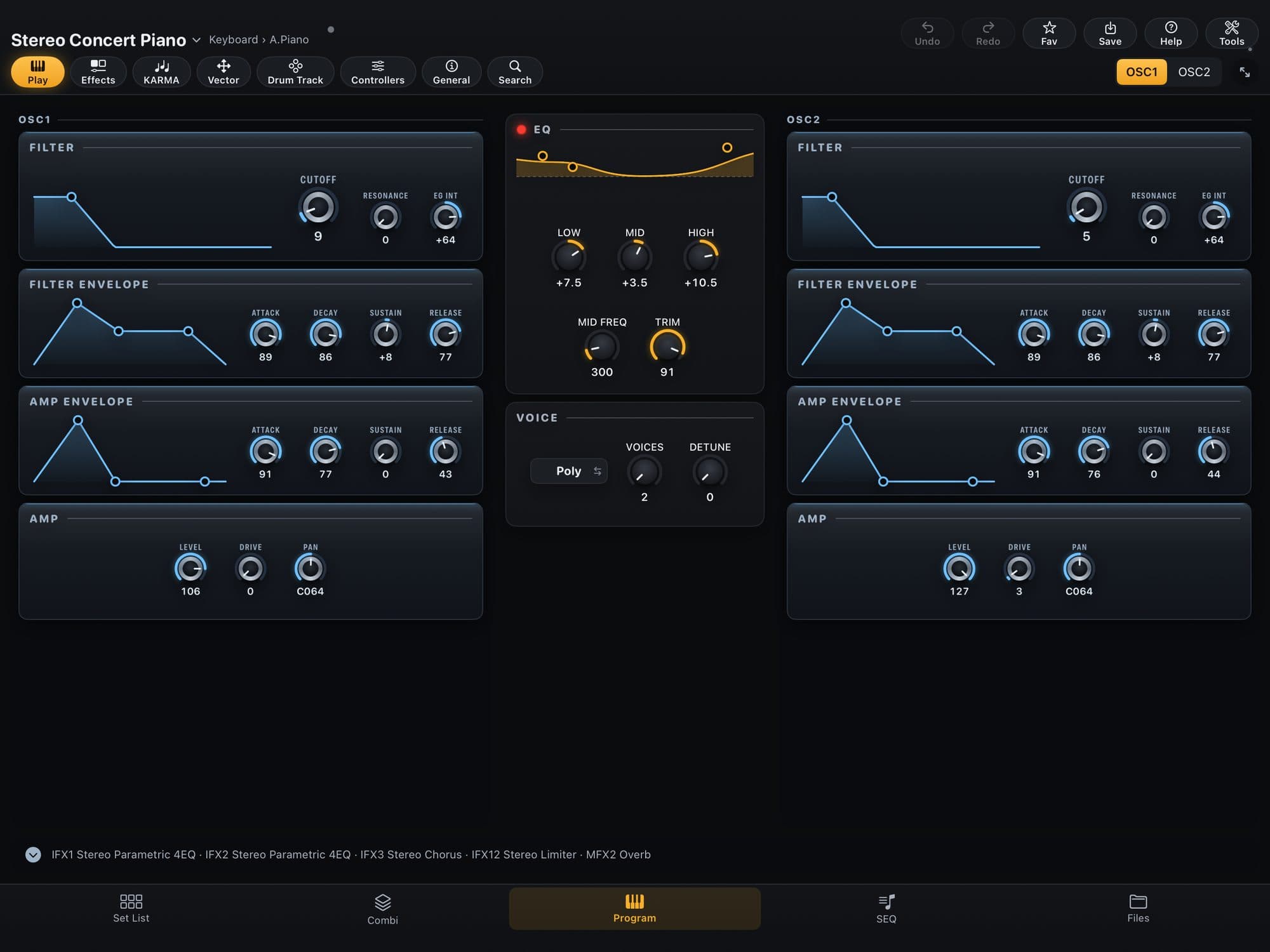
- 2The keyboard has 9 engines (HD-1, AL-1, CX-3, STR-1, MS-20EX, PolysixEX, MOD-7, SGX-2 and EP-1) and the screen shows the ones in the Program you opened — note that we defined a summary of the main editing parameters of each engine, focused on “live” use: an HD-1 appears as OSC1 (and OSC2, in Double Programs); an EXi Program appears with EXi1 on the left, EQ and VOICE in the middle and EXi2 on the right. Tap the engine chip at the top right to swap the engine, copy from another Program or start from scratch (“Init Program”).
- 3At the top are the Program’s name, the Undo, Redo, Fav, Save, Help and Tools icons and the row of sections: Play, Effects, KARMA, Vector, Drum Track, Controllers, General and the “Search” magnifier, which finds any parameter of the Program by name. On sounds that have a Step Sequencer, there is also a “Step” icon (see “Step Sequencer in notes”).
- 4Drag a knob up or down. One tap opens a bubble with −1 and +1; two taps return to the original value; holding opens a menu with “Fine-tune…”, to set the value precisely and, on parameters that allow it, “Control with…” (see “Pedal and controllers”).
- 5The filter, envelope and EQ graphs can be dragged with a finger too. On the HD-1 filter, sideways changes the cutoff and up changes the resonance.
- 6The light next to the name tells whether the keyboard has this sound. Green: live, and every turn reaches the keyboard right away. Amber ring with ▶: the keyboard has another sound; tap the light to play this one on the keyboard (nothing is written). Red with “!”: a change did not arrive; tap to send the whole sound. Gray: no cable, or “Follow the keyboard” is off.
- 7To hear a Program from a file on the keyboard, open it (the keyboard goes to the same slot), touch any control (the first touch sends the sound into the edit memory, nothing written) or hold the Program in the list and choose “Play on the keyboard”.
Careful:“Play on the keyboard” and that first touch replace the sound being edited on the keyboard: what you have not written there (WRITE) is lost. Changing the engine sends the whole sound: the app waits for you to release the keys and, at that moment, the sound cuts. To keep your work, use Save (see “Save and write to the keyboard”).
Step Sequencer in notes
The Step Sequencer of some engines has 32 steps, and on the keyboard each step is just a number. Here the app does the math the keyboard leaves to you and shows each step’s note.
- 1Open a Program that has a Step Sequencer: every EXi Program (the “Common Step Seq”) and, per voice, the AL-1 and the MOD-7. The HD-1 has none. On those sounds, the “Step” icon shows up in the row of sections, after the magnifier.
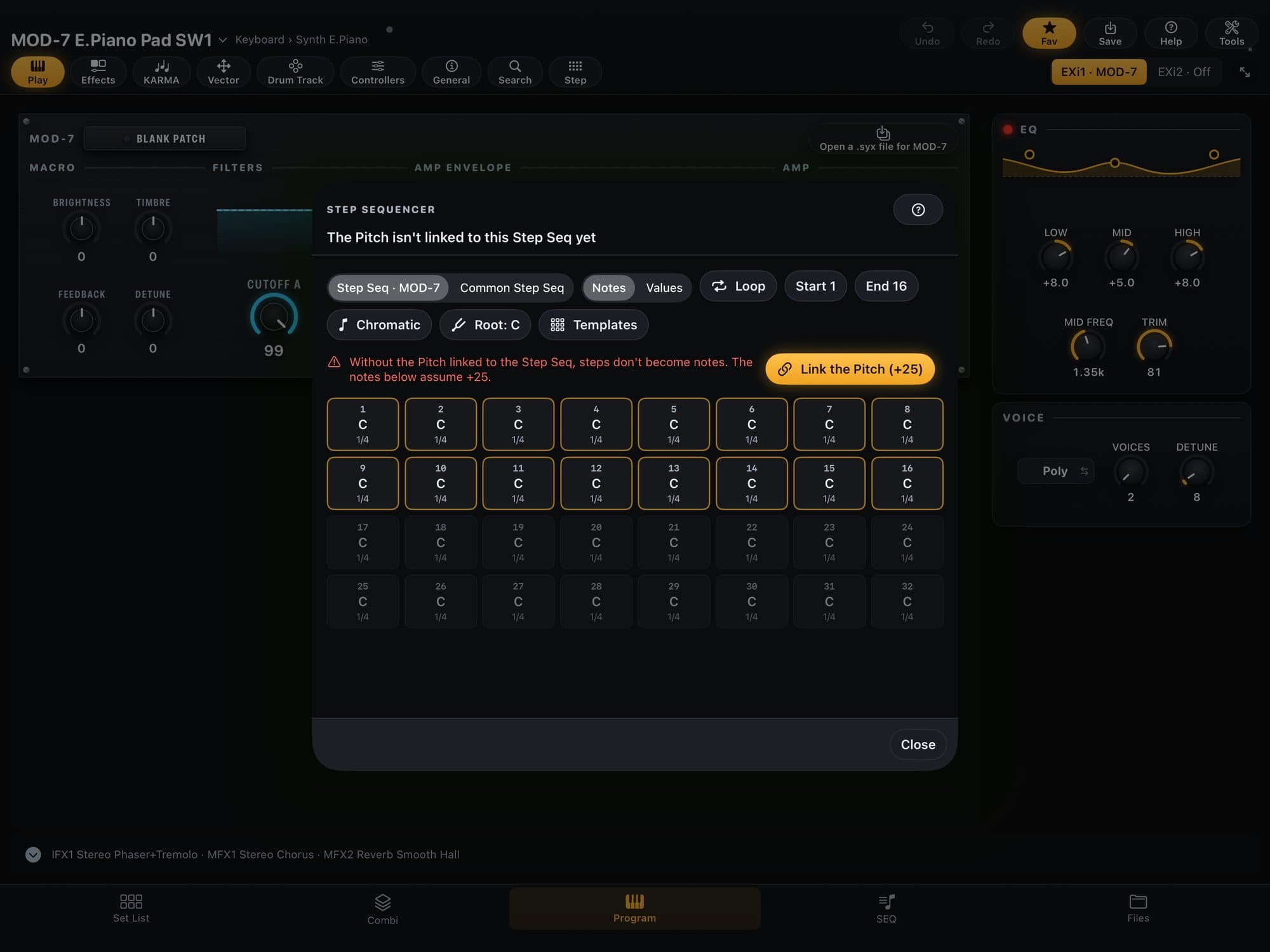
- 2Tap “Step”: the “Step Sequencer” sheet opens, with the 32 steps. In “Notes”, each step shows its note and duration; in “Values”, the number the keyboard stores. Tap a step to choose its note (up to two octaves each way) and its duration.
- 3Above the steps, “Start” and “End” say which steps play and the loop button makes the phrase repeat. The lit steps are the ones that play.
- 4The scale button (Chromatic, Major, Minor, Major pentatonic or Minor pentatonic) and the root button help you choose notes; “Templates” fills all 32 steps at once: All on the root, Octave arpeggio, 16-step bass, Major chord and Trance gate.
- 5If the Pitch is not linked to the Step Seq yet, the app warns that the steps do not become notes and offers “Link the Pitch (+25)”: it uses a free Pitch modulation slot, with the Step Seq as the source and +25 as the amount (at +25, four units make a semitone and every note lands exact). One Undo takes it back.
Careful:The Step Sequencer has not been heard on the keyboard yet: check that it sounds the right notes before using it on a gig.
Wave Sequence on a timeline
A Wave Sequence switches sample at each step; on the keyboard it lives in Global and the screen shows 8 steps at a time. The app shows all the steps at once, like a timeline, with each multisample’s name.
- 1In the “Files” screen, open the “Wave Seqs” tab, hold the Wave Sequence you want to see and choose “Show the steps…”. (You can also get there by holding an HD-1 Program, under “Multisamples”, when a zone plays a Wave Sequence.)
- 2The sheet shows the steps as blocks, with each one’s bank and multisample name, its level, its duration and the Transpose as a note (“on the key” means zero). The steps that play are lit and the repeat symbol marks the loop. The top line sums up what the Wave Sequence does: round robin (each note plays the next step), phrase or timbre sequence.
- 3In a user bank of a keyboard file you can edit: Run, Note-On Advance, the “Round robin” button and, on each step, the type, the Transpose and the Reverse. Factory banks (INT) and files from another model are read-only.
- 4Tempo, swing and Key Sync live in the Program, not in the Wave Sequence.
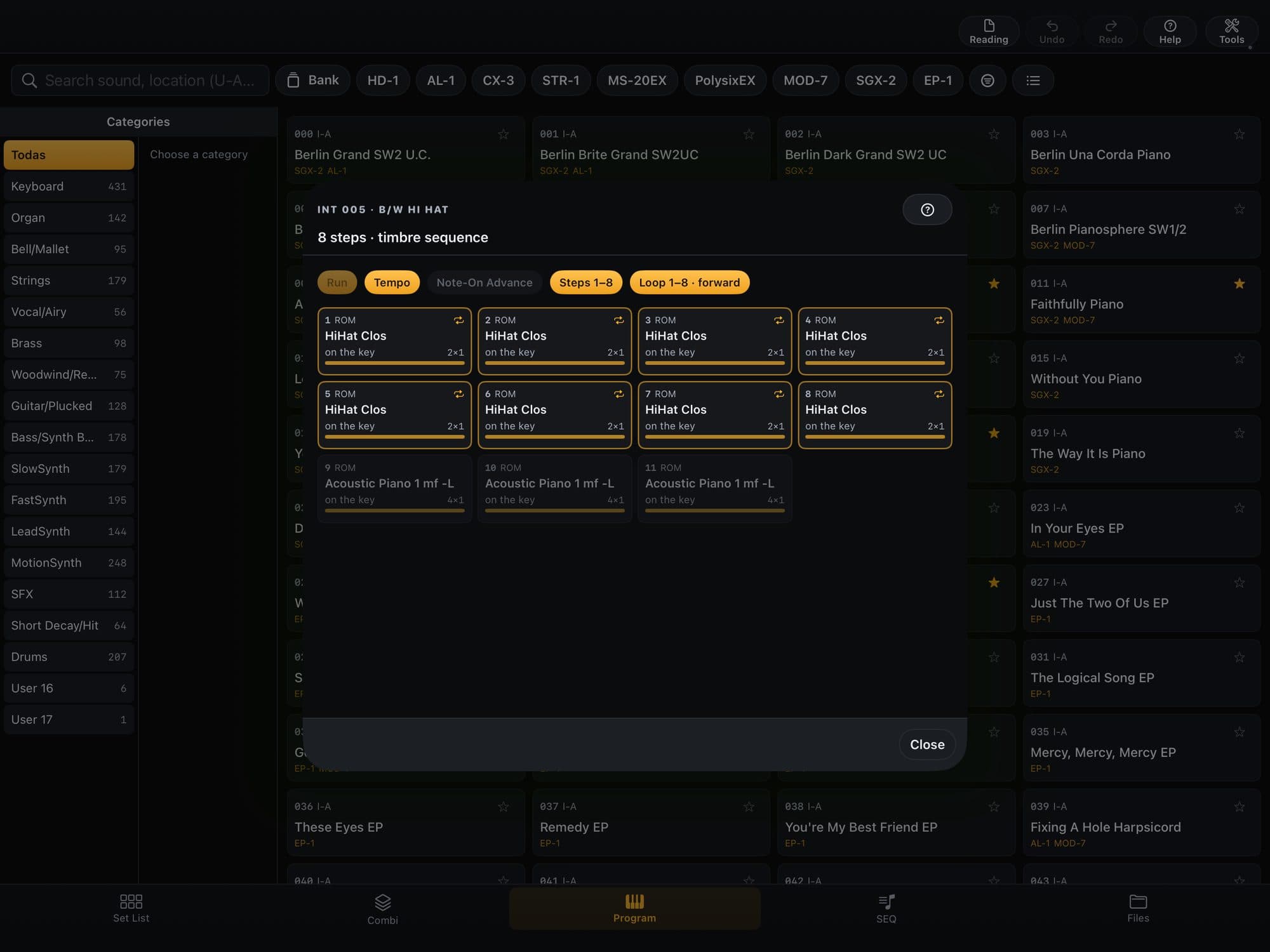
Careful:Looking at the steps changes nothing. Editing a Wave Sequence has not been tested on the keyboard yet: back up first.
Effects and presets from a .KFX file
- 1In the Program, tap “Effects” in the top row (or the strip with the effect names at the bottom of the screen). Each effect in use becomes a card, with an LED that switches it on and off, its name, MIX and up to 3 knobs. On EQs, drag the graph’s points (up and down for gain, sideways for frequency). At the top left are the “Master” (the returns, the chain and the volume of Master and Total), “Effect LFO” and “Copy” icons (see “Copy from another sound: effects, KARMA and Drum Track”); each one opens a small panel.
- 2To change the type, tap the effect’s name and choose the category and the effect (there are 197, besides “No Effect”).
- 3The keyboard does not send effect presets over the cable via MIDI: they live in a .KFX file (on the keyboard, DISK › Save › Save Effect Preset). To load yours, tap the card’s presets icon and “Open .KFX…”. You can also open it from the “Files” screen, with the FX icon, or by dropping the .KFX on the app window.
- 4To apply one, tap the card’s presets icon and choose “P00 Initial Set”, a “Factory” preset or a “User” one. The name of the preset in use shows small, under the effect’s name.
- 5To keep an effect of your own, hold the effect’s name and choose “Save as .KFX preset”: it goes into the first free U slot of the open .KFX. To write the file, tap Save as, in the FX area of the “Files” screen: the app creates a new .KFX and the original stays as it was. On the keyboard, load it with DISK › Load.
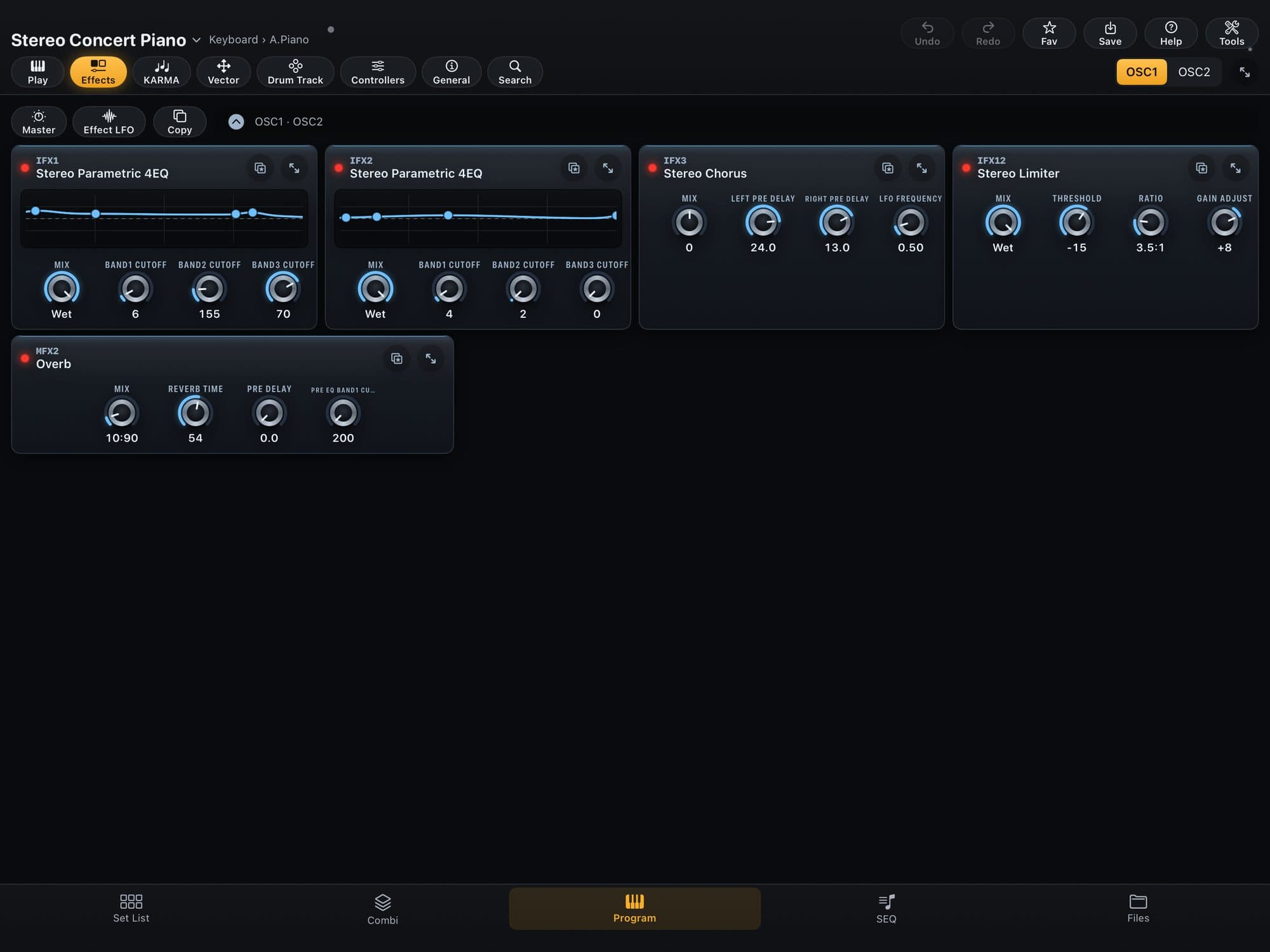
Tip:The first .KFX you open becomes the default: the app loads it on its own next time. To undo that, use “Don’t open at launch” in the presets menu.
Copy from another sound: effects, KARMA and Drum Track
Want the reverb from that Program, the KARMA from another Combi or the Drum Track of a sound that is already done? Bring them from any open file, without redoing it by hand.
- 1Tap the “Copy” icon (Copy from another sound), top left of the Effects page. In KARMA, it is the “Copy” menu › “KARMA from another sound…” or “Drum Track from another sound…”; in the Program’s Drum Track section, the icon sits on the right.
- 2Under “What to copy”, choose “Effects”, “KARMA” or “Drum Track”. For Effects, choose “All” (it brings the chain, the returns and the Master and Total volume along, plus the two Effect LFOs) or “One effect” (you say from which slot there to which slot here).
- 3Under “From where”, choose Program or Combi and tap “Choose the Program…” (or the Combi): any open file works.
- 4Check the preview and tap “Apply”. One Undo takes it all back. What belongs only to the Combi here — the tracks’ route to the IFX, pan, output and sends — stays as it was.
- 5The presets icon menu on each effect and holding the effect’s name also have “Copy from another sound…”, already on “One effect”, with the destination slot chosen.
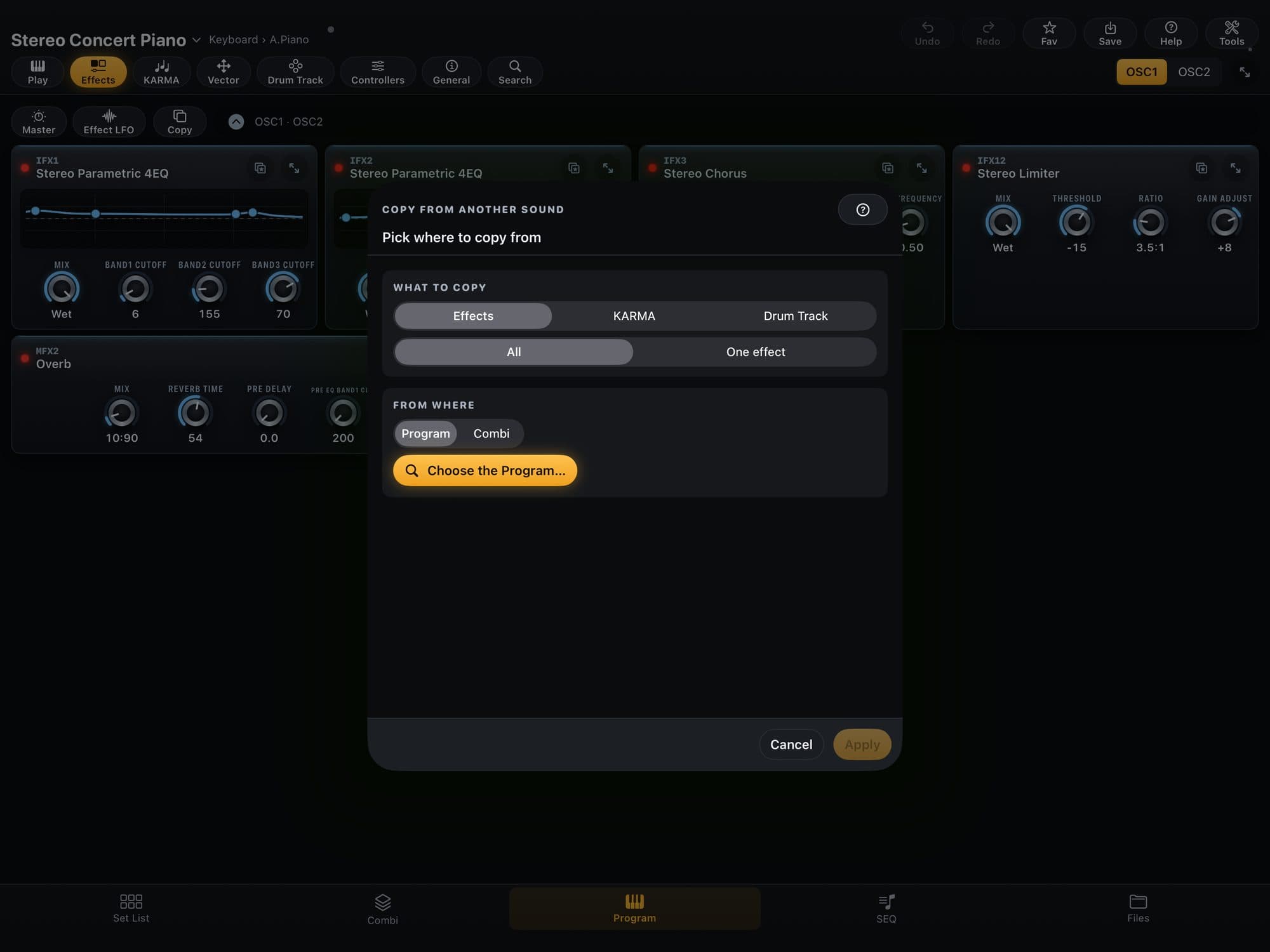
Careful:Copy from another sound has not been tested with the keyboard yet: it sends the effects as a message and should not cut the note. Back up first.
Find a Combi: the grid
The Combi screen has the same map as the Programs screen: categories, bank and favorites.
- 1Tap “Combi” in the bottom bar and, on the open Combi’s name (with ▾), hold and choose “See all Combis…”.
- 2On the left are the file’s categories (“All” and the rest, with the count) and, beside them, the subcategories. Each tile shows the slot, the name, the ★ (tap to mark it as a favorite) and how many timbres play.
- 3At the top: the search (by name or by slot, like I-B 8), “Bank”, “Favorites”, the icon that switches between grid and list (the list also shows empty slots) and “New Combi…”.
- 4Tap a tile to open the Combi. Empty slots show faded, as “Init Combi”, in the list only.
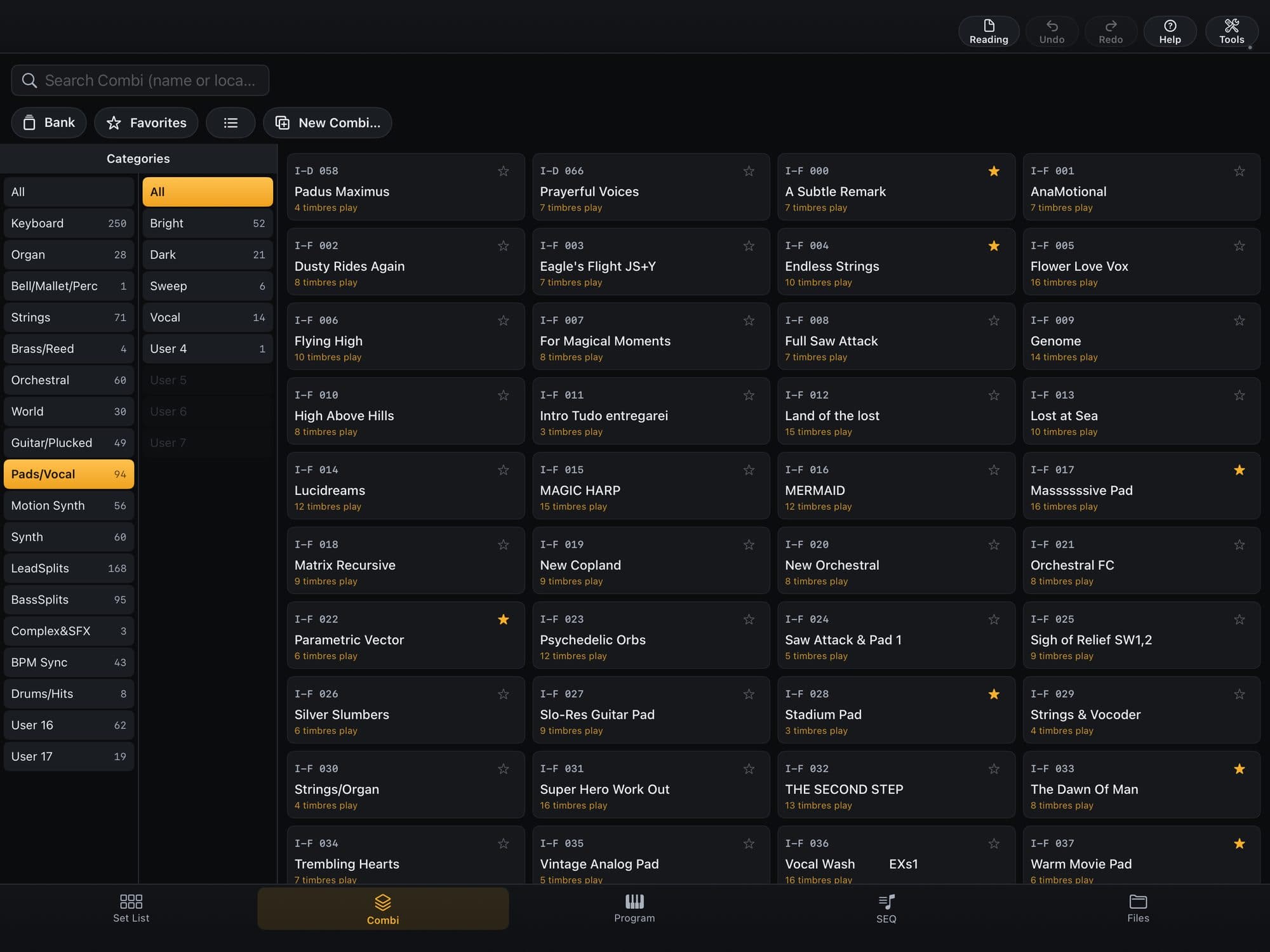
Tip:In the sound pickers (Set List slot, Combi track, New Combi…), empty slots and banks show up too, faded.
Build a Combi in the Mixer
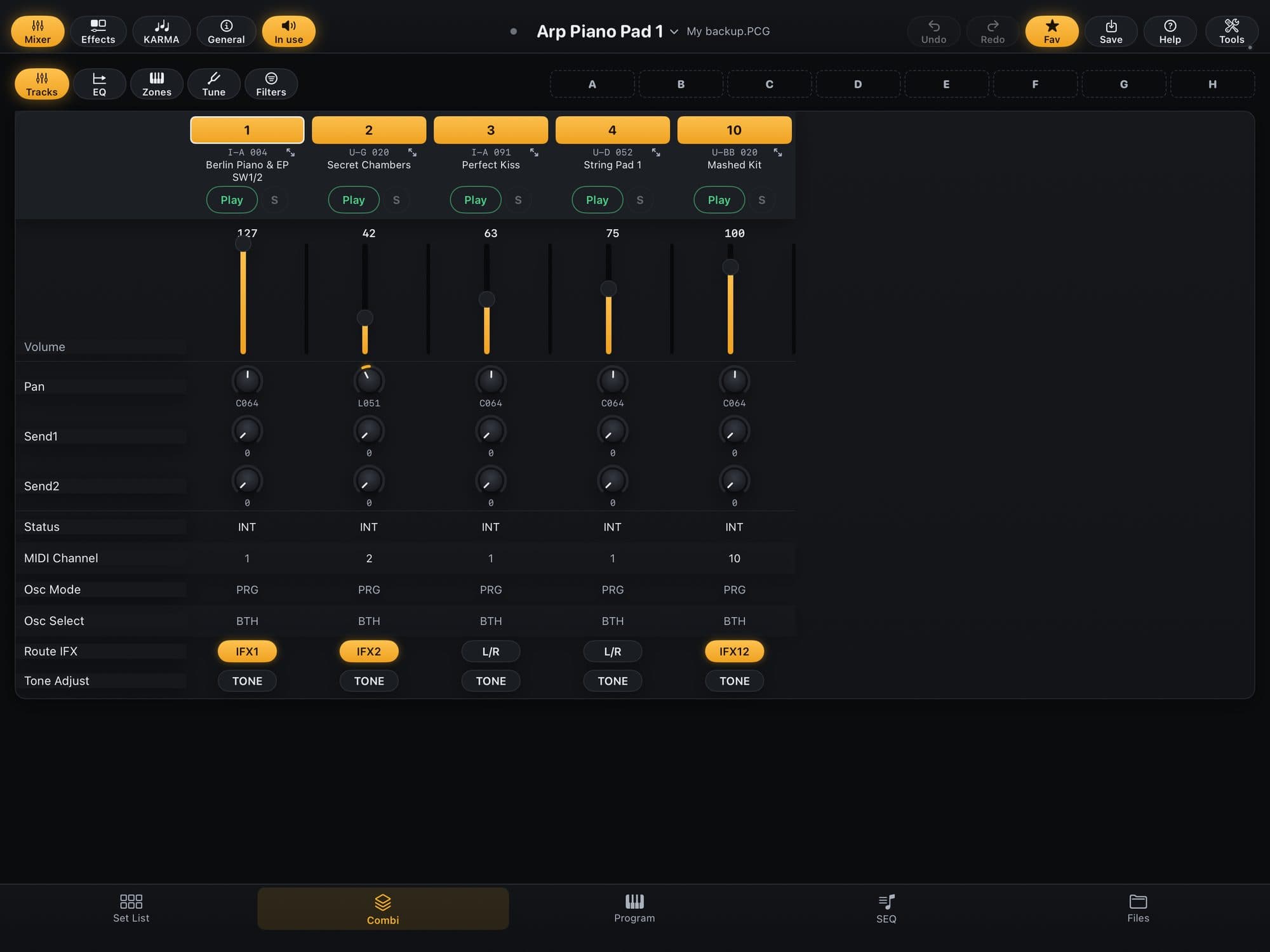
- 1Tap “Combi” in the bottom bar: it opens the last Combi you used. For another one, tap its name at the top (with the ▾) and pick from the list, which has a search. Hold the name for “Rename…”, “New Combi…” or “See all Combis…” (the grid by category: see “Find a Combi: the grid”).
- 2The Mixer lives in the “Mixer” section (top left, next to Effects, KARMA and General). By default the “In use” button is on and the board shows only the tracks that play; turn it off to see all 16. The » arrow (bottom right) takes you to tracks 11 to 16. With “In use” on, a muted track disappears from the board.
- 3In the “Tracks” tab, each column has volume, pan, Send1 and Send2, status, MIDI channel and the “Play” or “Mute” button, with the “S” for solo. The other tabs are “EQ”, “Zones”, “Tune” and “Filters”.
- 4“Route IFX” sends the track to one of the insert effects (IFX1 to IFX12), to L/R or to Off. The “TONE” button switches on the keyboard’s Tone Adjust for the track; hold it to open the 9 sliders, the 8 knobs and the 16 switches.
- 5To change a track’s Program, tap its name and choose in “Choose the Program”. In “What to copy from the Program”, tick what comes along (IFX, MFX and TFX effects, EQ, controllers, KARMA) or choose “Just the sound”, and confirm with the button at the bottom.
- 6To copy a track to another Combi in the same file, hold its number and choose “Copy track”. In the other Combi, hold the destination track’s number and choose to paste with the IFX or without the IFX.
- 7To edit a Program for just that track, without changing the other Combis that use the same Program, hold the track’s number and choose “Edit the Program for this track only…”: the app copies the Program into the first free slot of a user bank, with the same name, points only that track at the copy and opens it in the editor. One Undo takes it back. This has not been tested on the keyboard yet.
- 8To create a Combi from a Program, hold the Program in the grid or list and choose “Create a Combi with it…”. Name it, choose the destination slot and tap “Create”: nothing is made before that.
Tip:Between different files, take the whole Combi through the “Files” screen: the preview shows what comes along (see “Move a Combi from one .PCG to another”). Next to the Combi’s name you see where it comes from — the “Keyboard Memory” or the .PCG’s name —; when there is another source, it becomes a menu that switches to the same Combi in the other file.
Layer and Split: two sounds on the keyboard
On the keyboard, Layer and Split are key zones for each track of the Combi. The app draws those zones over the keys.
- 1Open the Combi, tap “Mixer” and then the “Zones” tab.
- 2Tap a track’s number: its zone shows as an amber strip over the drawn keyboard, and the zones of the other tracks that play show as gray ribbons above it.
- 3For a Split, drag the top end of track 1’s zone to the note where the split happens and the bottom end of track 2’s zone to the next note. For a Layer, leave both tracks on the whole keyboard.
- 4Want to set the note by playing it? Tap “From the keyboard”, choose “The zone’s lowest note” or “The zone’s highest note” and play the note on the keyboard (with the cable connected). With “The softest velocity” and “The strongest velocity” you split two sounds by how hard you play.
- 5The Key Window and Vel.Window rows, above the drawing, show the same numbers. The icon next to “From the keyboard”, “Open the whole timbre”, opens every field of the track.
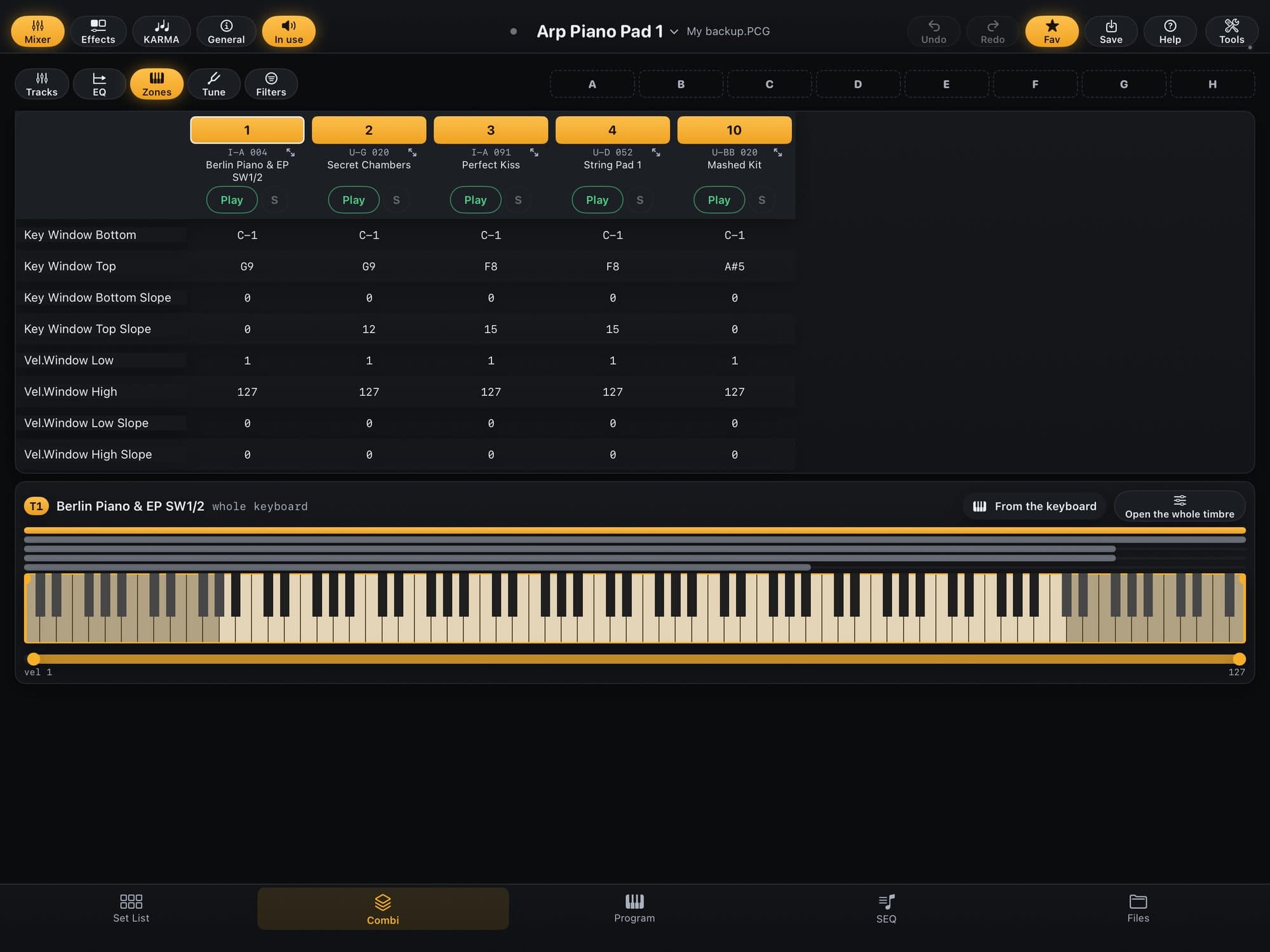
Tip:With the cable connected, the keys in the drawing light up when you play the keyboard: handy to check where one sound ends and the other begins.
Combi scenes, A to H
A scene is a snapshot of the whole Combi, made and saved only in the app: mixer, mutes, effects, KARMA, everything but the name. There are 8 per Combi, A to H, and they live in the app (and in your iCloud), not in the .PCG or on the keyboard.
- 1The 8 buttons (A to H) sit at the top, to the right of the row of tabs, on every Combi page. Set the Combi the way you want it to sound.
- 2Tap an empty button (dashed): the scene is stored right away, as “Scene A”, “Scene B”…, and the app says “Hold the button to rename”.
- 3Hold a full button for “Save over it…”, “Rename…”, “Description…” or “Delete the scene” (there is also “MIDI pedal or controller…”; see “Play in Perform mode”). Hold an empty button for “Save the Combi here…”, naming it first.
- 4To recall a scene, tap a full button: the Combi becomes the snapshot. The lit button is the scene in force; if you change the Combi afterwards, the button gets an outline and a warning dot. Without the cable, recalling a scene changes the file’s Combi, on screen only: a note says so, and the Combi stays like the scene until you Undo or recall another.
- 5To change scene without cutting the note that is ringing, hold the chord (or the pedal) and tap the next scene: what comes in goes right away, and what would silence the note waits for you to release the keys and the pedal. A scissors on the button warns that the switch cuts the sound; while it waits, the button’s border turns thick and dashed, and tapping it again switches on the spot.
- 6The “Clear scenes” icon (eraser, in the top bar) deletes every scene of the Combi; it only shows when there is at least one. Scenes travel on their own between the Mac, the iPad and the iPhone through iCloud, with the same Apple ID and iCloud switched on.
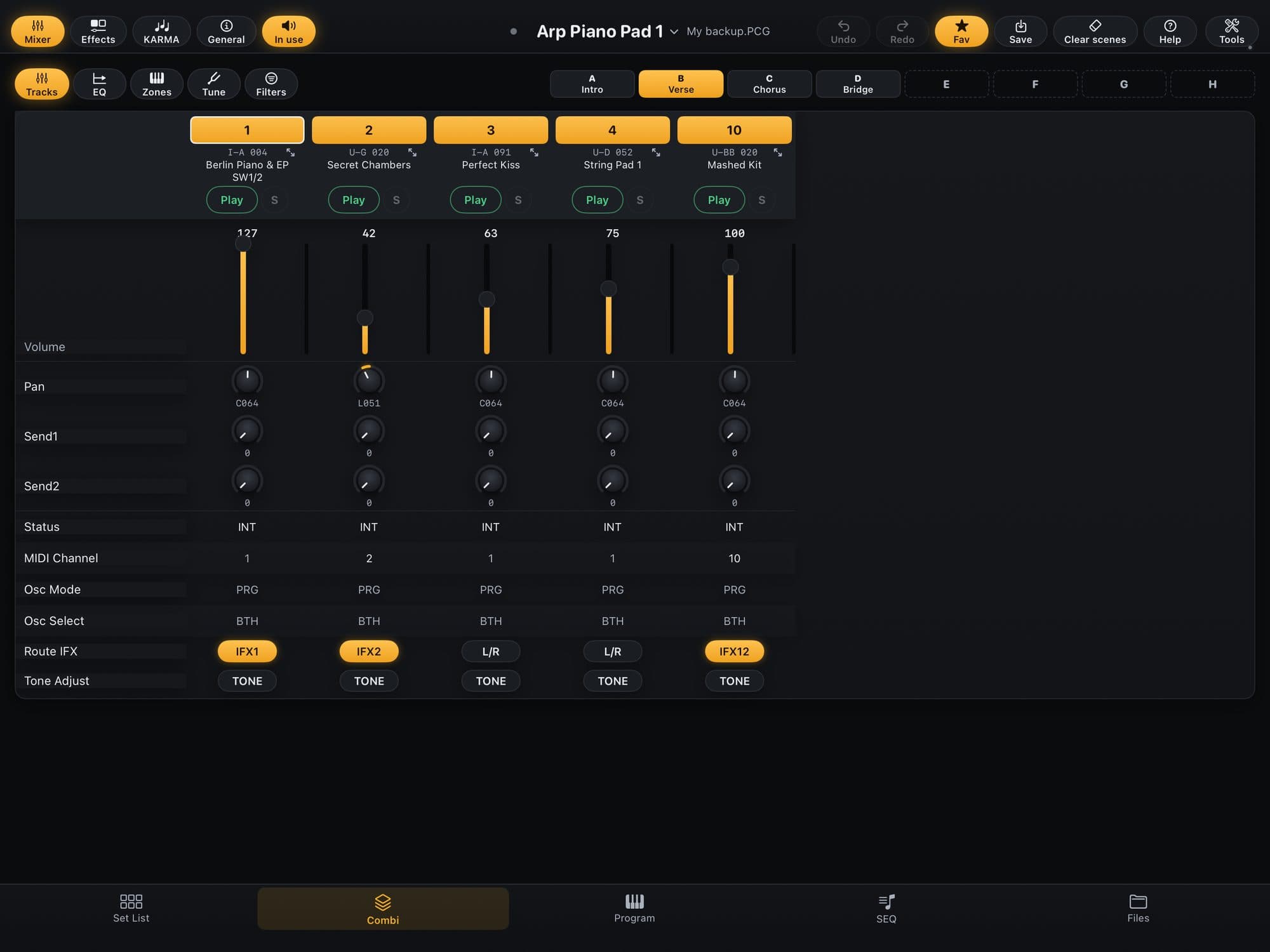
Careful:The app’s 8 scenes (letters A to H) are not the keyboard’s 8 KARMA SCENEs (numbers 1 to 8). The app shows both, but the keyboard’s do not recall the app’s.
KARMA: say what you want
- 1In the Combi, tap “KARMA” in the row of sections (in the Program, it is the “KARMA” section). The strip at the top has the KARMA key, the TEMPO, the TIME SIG., the LATCH, the SCENE CHANGE and the “Copy” menu.
- 2In the Combi, the page starts with the “BAND” (see “KARMA: the band”). Below come “MODULES” (closed; each module, A to D, says what it plays, for example drums, style and kit) and “KNOBS AND SWITCHES”, where the knobs have a player’s name (Swing, Accents, Density, Groove), with the manufacturer’s name in small type underneath.
- 3To bring in a KARMA from another sound, tap “I want…”: in the Combi it is on each band card; in the Program, next to the GE, in the strip.
- 4Choose what you want it to play. There are 12 cards, among them “An arpeggio”, “A drum groove”, “A bass line”, “Rhythmic chords” and “Echo what I play”; each says how many of your sounds do that.
- 5In the list, “Listen” plays on the keyboard without writing anything (needs the cable); “Use this one” opens the “Bring KARMA from another sound” preview.
- 6Check “COMES FROM”, “PLAYS ON TRACK” (which track the drums or the arpeggio sound on), “STAYS AS IT IS” and “THE KARMA KEY”, then tap “Apply”. In the Combi, the Undo icon takes it back.
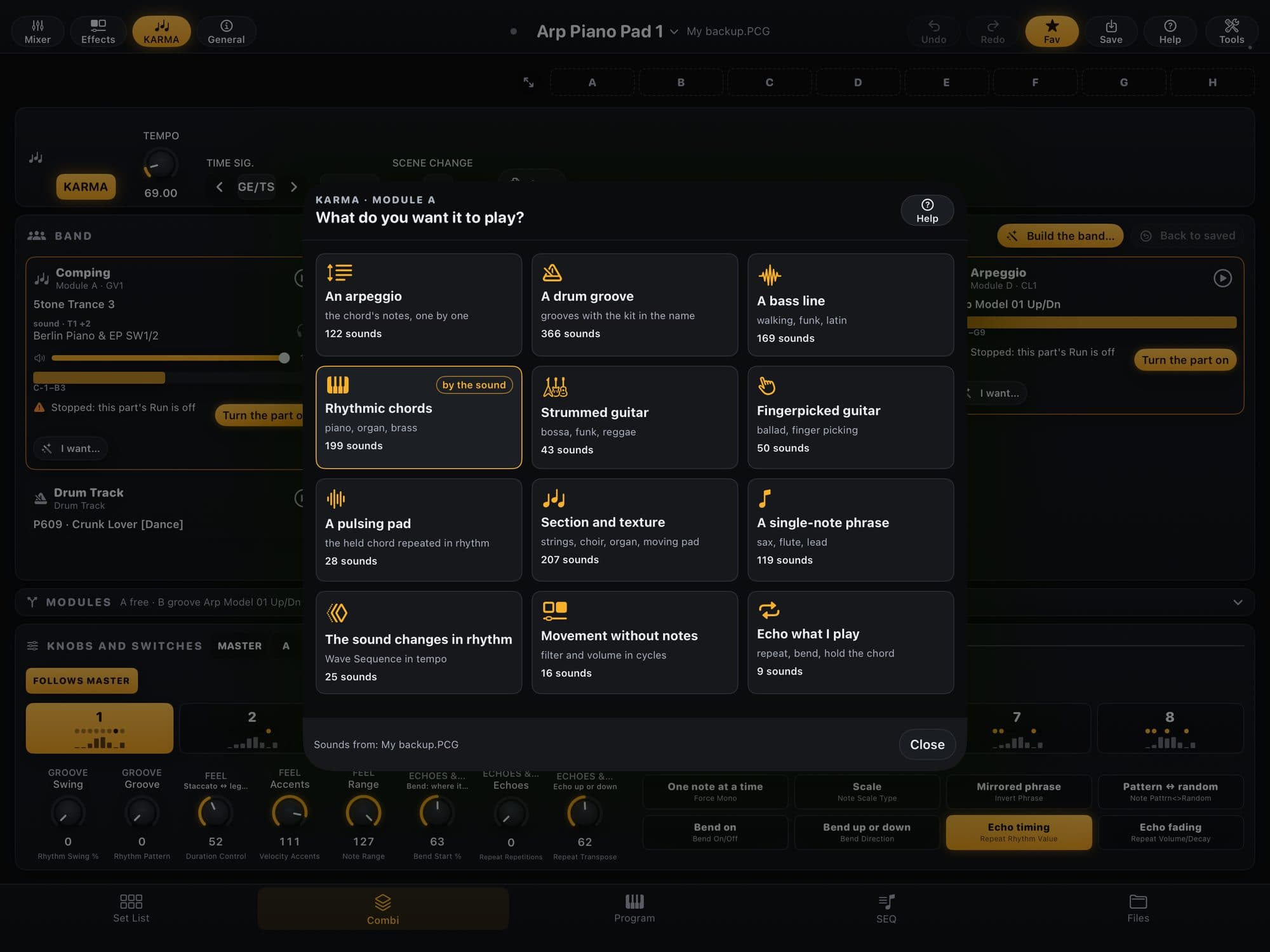
Tip:The source sounds come from every open keyboard file, the Memory included. If the sound you want is in a .PCG, open that file first, in “Files”. The “Copy” menu takes a sound’s KARMA and Drum Track to another one; under “From another sound”, “KARMA from another sound…” and “Drum Track from another sound…” let you choose the source (see “Copy from another sound: effects, KARMA and Drum Track”).
Careful:If the Combi is on the keyboard, it goes over whole again and whatever is sounding is cut.
KARMA: the band
In the Combi, the BAND shows each part KARMA plays — drums, bass, comping, arpeggio — on a card, instead of a list of modules.
- 1On each card you see the part’s role (drums, bass, comping, arpeggio, pad, phrase), the module playing it, the GE (tap to swap), the track’s sound and the volume. The track’s sound also swaps with a tap: it opens “What to copy from the Program”.
- 2The ▶ button turns the part on and off. If a part does not play, the card says why — “The KARMA button is off”, “Stopped: this part’s Run is off”, a muted track or no channel — and already brings the button that fixes it: “Turn KARMA on”, “Turn the part on”, “Unmute”, “Turn the Drum Track on”.
- 3Under “I want…”, at the foot of each card, you say what the part should play and the app brings the KARMA from a sound of yours (see “KARMA: say what you want”). “Drum Track” is the keyboard’s drum pattern; “Direct keyboard” is the sound you play without KARMA.
- 4To build a whole band at once, tap “Build the band…” (Combi only): choose up to 4 parts — the rhythm of a factory sound that already plays that role and the sound on a track —, leave the “Free pad” if you want and tap “Build”. The app gives each part a channel, puts the role’s zone on the keyboard and turns on the SW1 to SW4 switches, one per part (each one switches its part on and off). One Undo takes it all back.
- 5“Parts together” shows up when two or more parts play and one does not start together: it sets every module’s Note Trigger to 1st, so the parts play in sync. “Back to saved” undoes everything you changed in KARMA since the file.
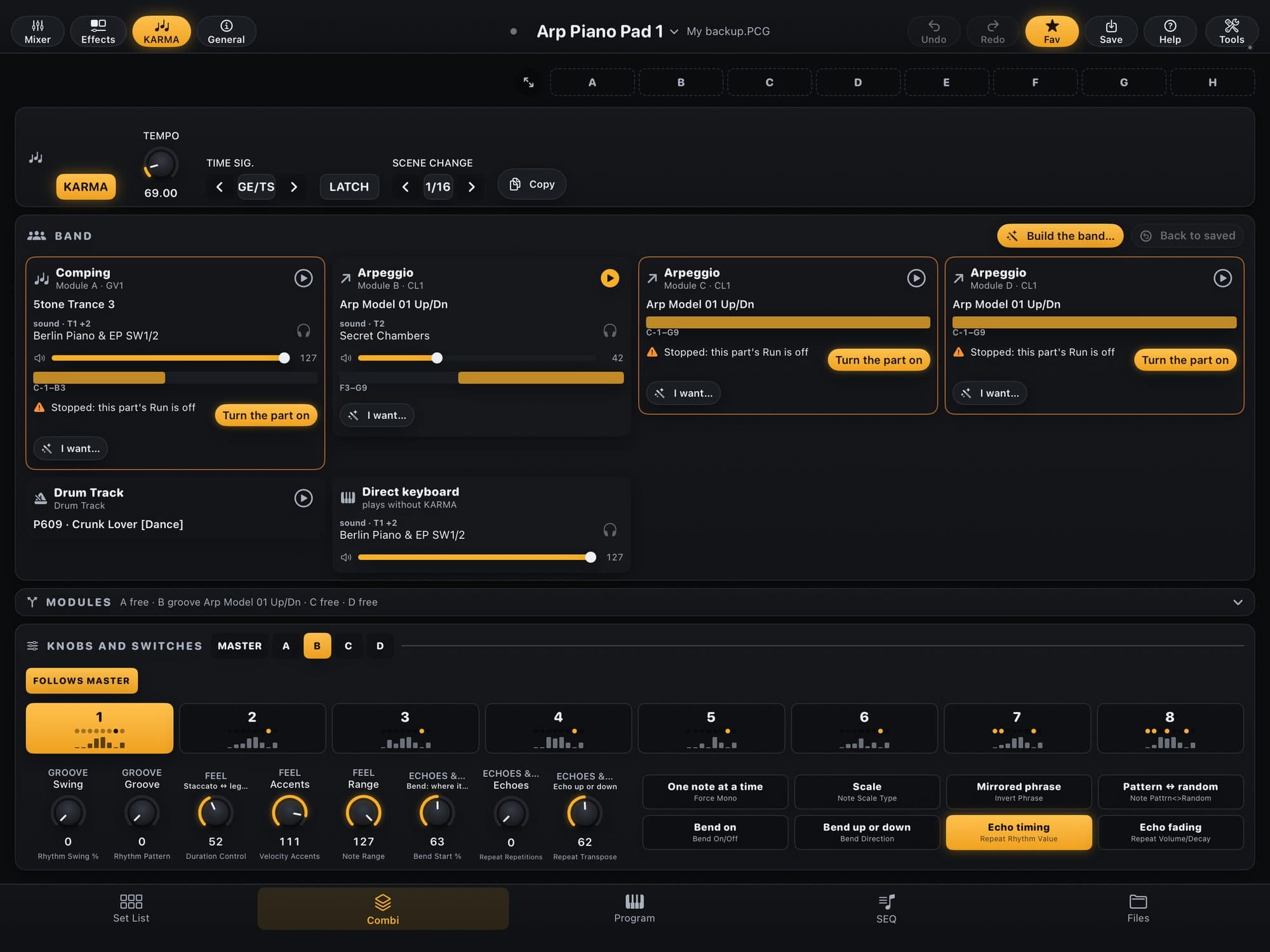
Careful:The band and “Build the band…” have not been heard on the keyboard yet: check the result and, if the Combi is already on the keyboard, remember it goes over whole and cuts whatever is sounding.
Pedal and controllers
The pedal sends CC#04. The app shows which role the pedal has on the keyboard, which Combi tracks receive it and what it moves in each sound.
- 1In the Program, open “Controllers” in the row of sections; in the Combi, “General” and then the controllers drawer (it starts closed). At the top is the “PEDAL” card.
- 2Under “Role”, choose what the pedal does on every sound: “Free pedal” (the recommended one: it sends CC#04 and only acts where a sound links it), “Expression”, “Volume”, “Pan”, “Effect send 1” or “Effect send 2”, “Ribbon” or “Off” (and more, under “Others”). “Back” brings back the previous role.
- 3The change goes to the keyboard’s Global over the cable and lasts until you turn the keyboard off: to keep it, do a Write on the keyboard’s Global.
- 4The meter shows the CC#04 coming from the keyboard (0 is the heel, 127 the toe). With no pedal at hand, “Test” sends CC#04 to the keyboard, as the pedal would.
- 5“IN THIS SOUND” shows what the pedal moves in that Program, with the amount. In the Combi, “TRACKS THAT RECEIVE THE PEDAL” turns tracks 1 to 16 on and off (a track that does not play from the keyboard stays dimmed).
- 6To link a parameter to the pedal — or to the ribbon, the joystick, the Vector, a knob —, hold the knob (or the row) in the Program and choose “Control with…”. Under “CONTROLLER” pick the source, under “RANGE” the stretch (for example “Pedal heel” and “Pedal toe”, or “Swap”) and tap “Link”. The link lives in the Program: it counts in every Combi that plays it; to count in just one Combi, first use “Edit the Program for this track only…”.

Careful:If the card shows “CC off in Global”, the keyboard has GLOBAL › MIDI › Control Change Enable turned off and the pedal reaches no sound at all; “Local Off” means Local Control is off and the keyboard does not play its own sound; “no Global” means the app does not have the Global (open the Keyboard Memory or a .PCG that has it). Changing the role, “Back”, “Test” and the meter need the cable. The amount is shown as “Approximate”: the exact math has not been measured on the keyboard yet.
Save and write to the keyboard
In KR Editor, what you change counts first for the app; with the cable and “Follow the keyboard” on, every touch already goes to the keyboard as an edit, without writing. To make it count there for real, you save — and the app does the Write, with a copy of what was there before and a check afterwards.
- 1Check the cable, GLOBAL › MIDI › Enable Exclusive and the keyboard backup (DISK › Save All). Without the cable, the app keeps it in its own Memory and says “Saved in the app’s Memory. The keyboard isn’t connected: once you plug the cable in, Tools › Write all to the keyboard.”
- 2Changed a Program, a Combi or a Set List? Tap Save (the “Save…” icon, at the top). The “SAVE” sheet shows the name and the slot: it already comes set to the slot the sound came from, and the summary says “Same slot: Write on the keyboard” (without the cable, it says it goes to the keyboard when you plug the cable in). For another slot, pick the bank and the slot in the grid; the summary tells what goes out (“Over «name» in U-A 012”) or “In the empty slot”.
- 3Tap “Save here” (or “Save over”). The write runs on its own, in 4 steps — copy of what was there, send, Store Bank and check — and a note at the bottom of the screen says “Saved on the keyboard: …”. If the keyboard refuses or does not answer, a sheet opens with the reason.
- 4Wrote it and did not like it? In the note at the bottom of the screen, tap “Undo”: the app puts the copy of what was there back on the keyboard.
- 5Several changes at once: Tools › “Save · N changes” › “Write all to the keyboard (N)…”. The “WRITE TO KEYBOARD” sheet lists what goes; untick what you do not want and tap “Save”. In “Files”, hold a sound, a bank or a Set List and choose the option that writes it to the keyboard (“Write to the keyboard…”).
- 6To keep it in a file, without touching the keyboard: Tools › “Save file…”, or Save as, in “Files”. The app creates a new .PCG; the original is never replaced. For the Keyboard Memory, “Save file…” suggests the name “TECLADO” plus the date.
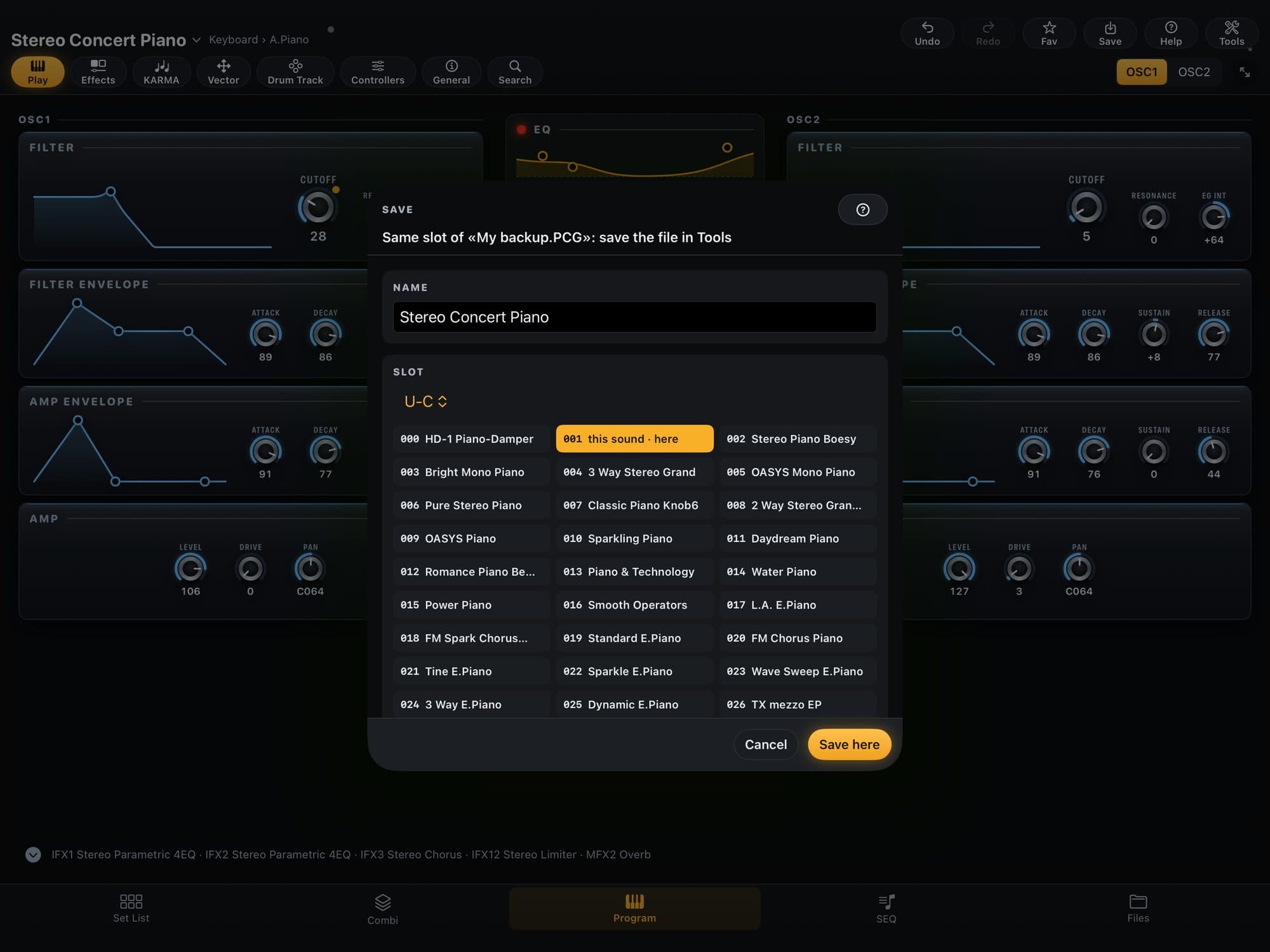
Tip:The copies of what was on the keyboard are kept on the iPad, in Files › On My iPad › KR Editor › “Cópias do teclado” (the folder keeps its Portuguese name). On the Mac, the “Show the copies in Finder” button, in the write-all sheet, opens the folder. The copy of the whole Memory is the file “Teclado espelho.PCG”, in the same app folder.
Careful:If a slot changed on the keyboard after the app read it, the app will not write over it: fetch the memory again (“Fetch from the keyboard”) or tap “Write over it” (the copy of what was there is kept). If the keyboard refuses with “protected object”, turn off Memory Protect for what you are writing (GLOBAL › Basic Setup).
Sort the Set List
- 1Tap “Set List” in the bottom bar: it opens the last Set List. The 128 slots show in a scrolling grid, with a “PAGE” header every 16. For another Set List, tap its name at the top (with the ▾); hold the name to rename it or see them all.
- 2Tap a slot to choose it; double-tap (or hold the slot and pick the first option, which edits its sound) to open the sound. With the cable connected, “Follow the keyboard” on, the Keyboard Memory’s Set List open and the keyboard in SET LIST, tapping the slot also calls that slot on the keyboard.
- 3To change the order, hold a slot and drag it onto another (on the Mac, drag with the mouse): the two swap places. Dropping on an empty slot moves it there.
- 4To take a slot far away, hold it and choose “Move to…”. At the top of the sheet, choose “Swap” (the two trade places) or “Insert” (the slot goes in there and the ones in between move down one place; nothing disappears) and tap the destination slot.
- 5To open a gap in the middle of the set, hold a slot (on the Mac, right-click) and choose “Insert empty slot”: the ones below move down one place (it is dimmed if slot 127 has a sound). To close a gap, choose “Delete”: the slot goes and the ones below move up.
- 6To name it, hold the slot and choose “Rename…” (up to 24 letters). For the song’s comment, choose “Comment…” (up to 512 letters): it shows large in Perform.
- 7In the slot bar, “More” opens Transpose and Hold on the same row (Hold says how long the previous slot’s sound keeps sounding when you switch) and “Comment” opens the comment.
- 8Without the keyboard connected, the Set List uses the Keyboard Memory kept in the app. If there is no Memory yet, the screen says the keyboard is not connected here and offers “Use the Keyboard Memory” (when it exists), “Open .PCG…” and “Connect the keyboard…”. The file name, next to the Set List’s name, becomes a menu when there is another source (the Memory, the live keyboard or another .PCG) and switches to the same Set List in the other file.
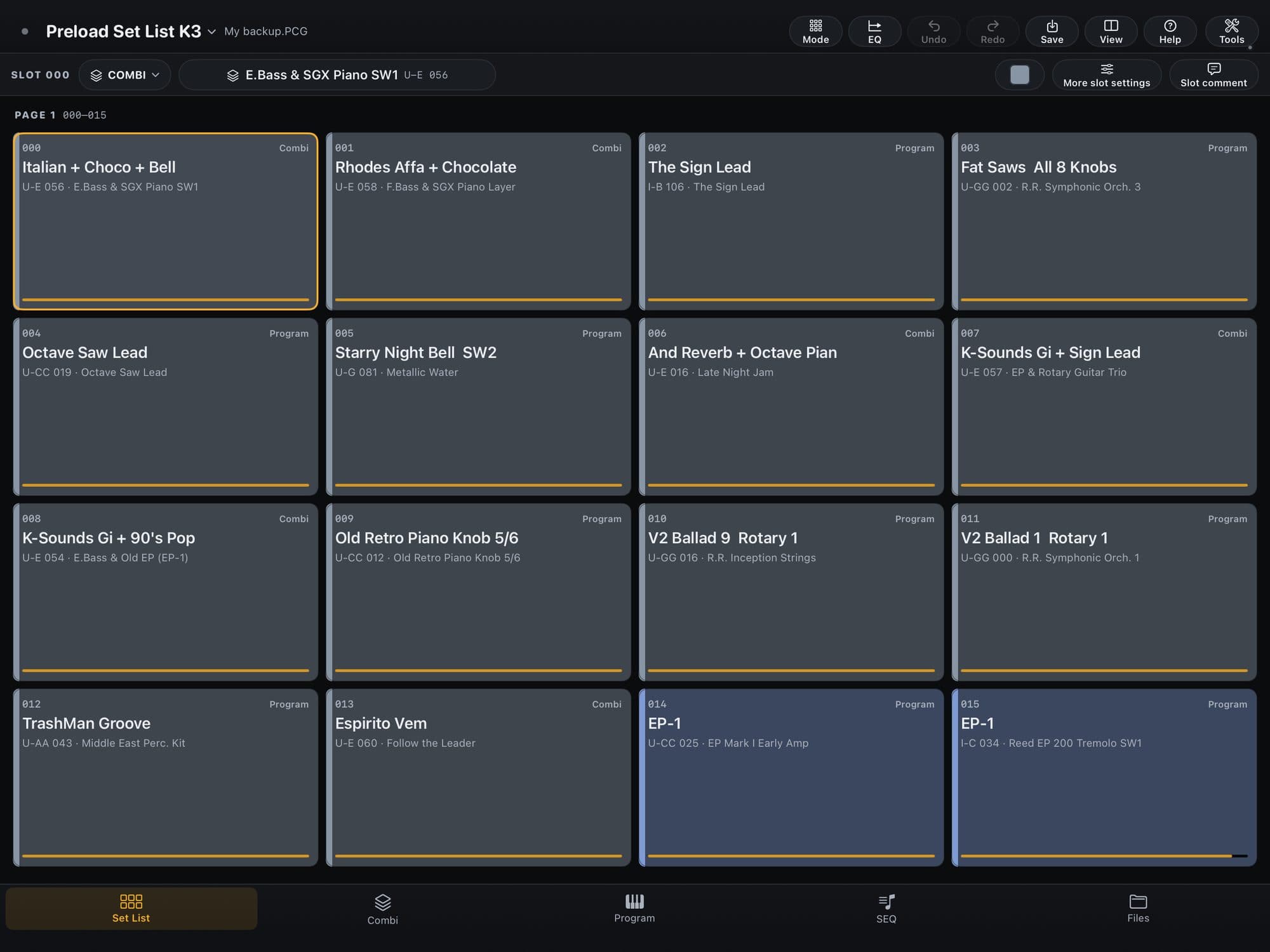
Tip:Holding the slot also offers “Cut”, “Copy”, “Paste here” and “Copy to…” (copies the slot to another Set List; the original stays). On the Mac, ⌘C, ⌘X and ⌘V work. The View icon opens two Set Lists side by side: dragging from one to the other copies.
Careful:What you change here is counted in Tools › “Save · N changes” until you write it to the keyboard (see “Save and write to the keyboard”).
Play in Perform mode
- 1On the keyboard, in GLOBAL › MIDI, turn on Program Change and Bank Change. Without them the Set List does not change slots over MIDI.
- 2In the Set List, tap the Mode icon (at the top) and choose “Perform”. With the cable connected, the keyboard goes to SET LIST on its own.
- 3The screen shows 8 large slots per page (4×2), with the sound’s name, the slot’s name and the Combi’s scenes. At the top are the slot’s number, name and comment. The ↑ and ↓ arrows at the bottom change page; “Previous” and “Next” (← and → on the Mac) step one slot at a time, like the footswitch.
- 4Tap a slot to call it on the keyboard. If its Combi has stored scenes (A to H), the scene buttons show up: tap a scene and it comes in. Without the keyboard connected, Perform rehearses: the slot lights up and “Previous” and “Next” move on screen, but nothing goes to the keyboard.
- 5Tap the name or the comment at the top to open the Comment Pad full screen (type size from S to XL and 3 brightness levels).
- 6To change scene with your foot, hold the scene’s button (on the Mac, right-click) and choose “MIDI pedal or controller…”. Pick “This scene”, “The next scene” or “The previous scene”, tap “Learn…” and press the pedal (the app waits 15 seconds). After learning, the menu gains “Learn another…” and “Forget”.
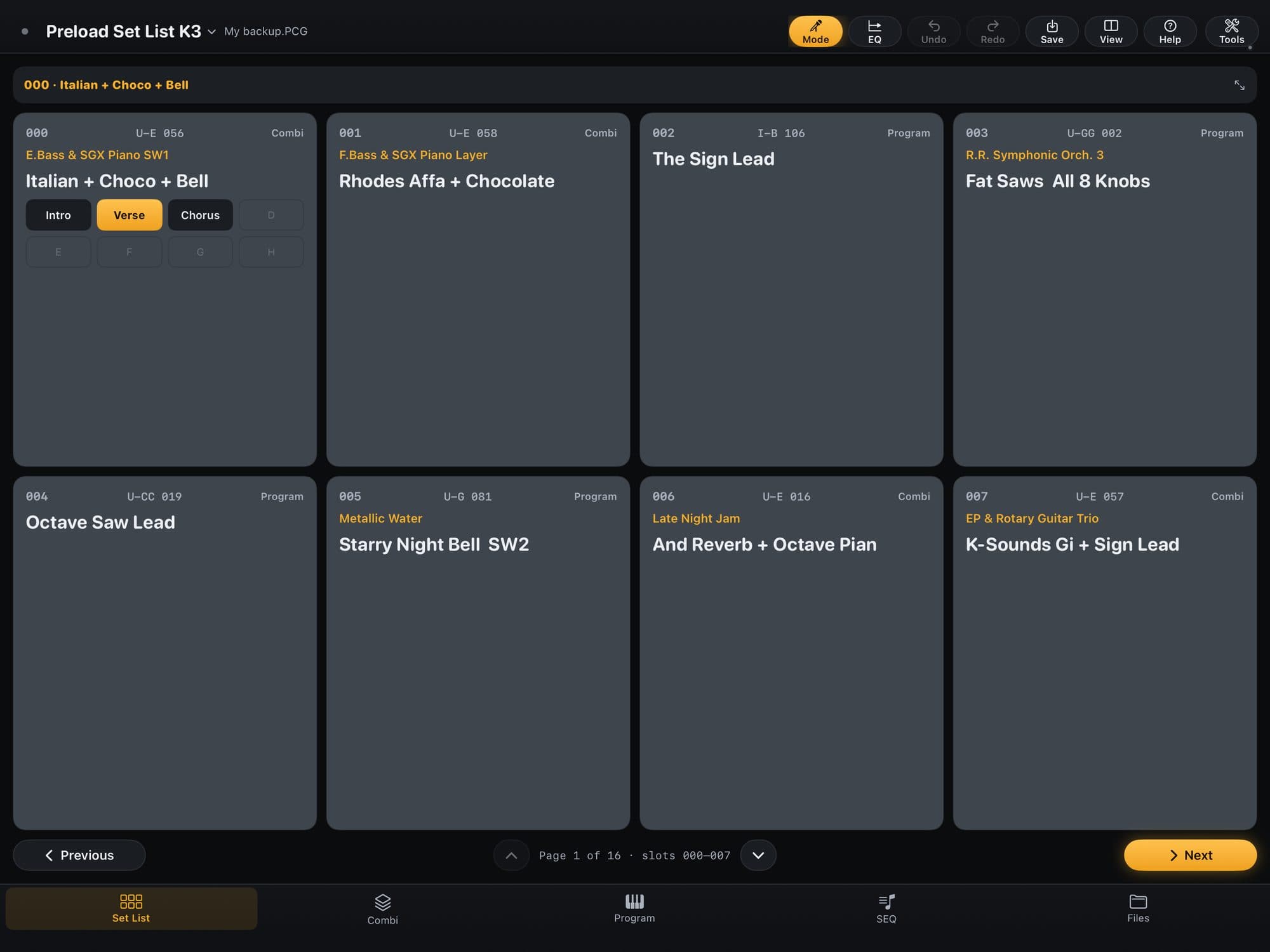
Tip:In “Live” mode, the keyboard stays in the Set List and the app opens the Combi or Program of the slot you play (when you turn Live on, it already opens the slot’s sound). In “Standard” mode, keyboard and app move together.
Careful:The MIDI pedal recalls Combi scenes. The app refuses the controls the keyboard already uses (Bank Select, the sustain CC 64 and the Program Change that comes from the keyboard itself): use another control. Changing SLOT with your foot is still the keyboard footswitch’s job.
Move a Combi from one .PCG to another
- 1Tap “Files”. In “Open .PCG…”, choose the first file; tap the View icon to open the second side and, on the name of side B’s file (▾), choose “Open .PCG…” for the second one.
- 2Tap “Combis” and a Combi on side A: the column on the right (“SELECTION · SIDE A”) shows what “TAKES ALONG”, that is, the Programs the Combi needs.
- 3Drag the Combi to side B (on the iPad, hold and drag; on the Mac, drag with the mouse). Dropping on a slot, the preview already points at it; dropping on the bank’s name, the Combi only goes into a free slot. You can also hold the Combi and choose “Copy” and, on the other side, hold the slot and choose “Paste here”.
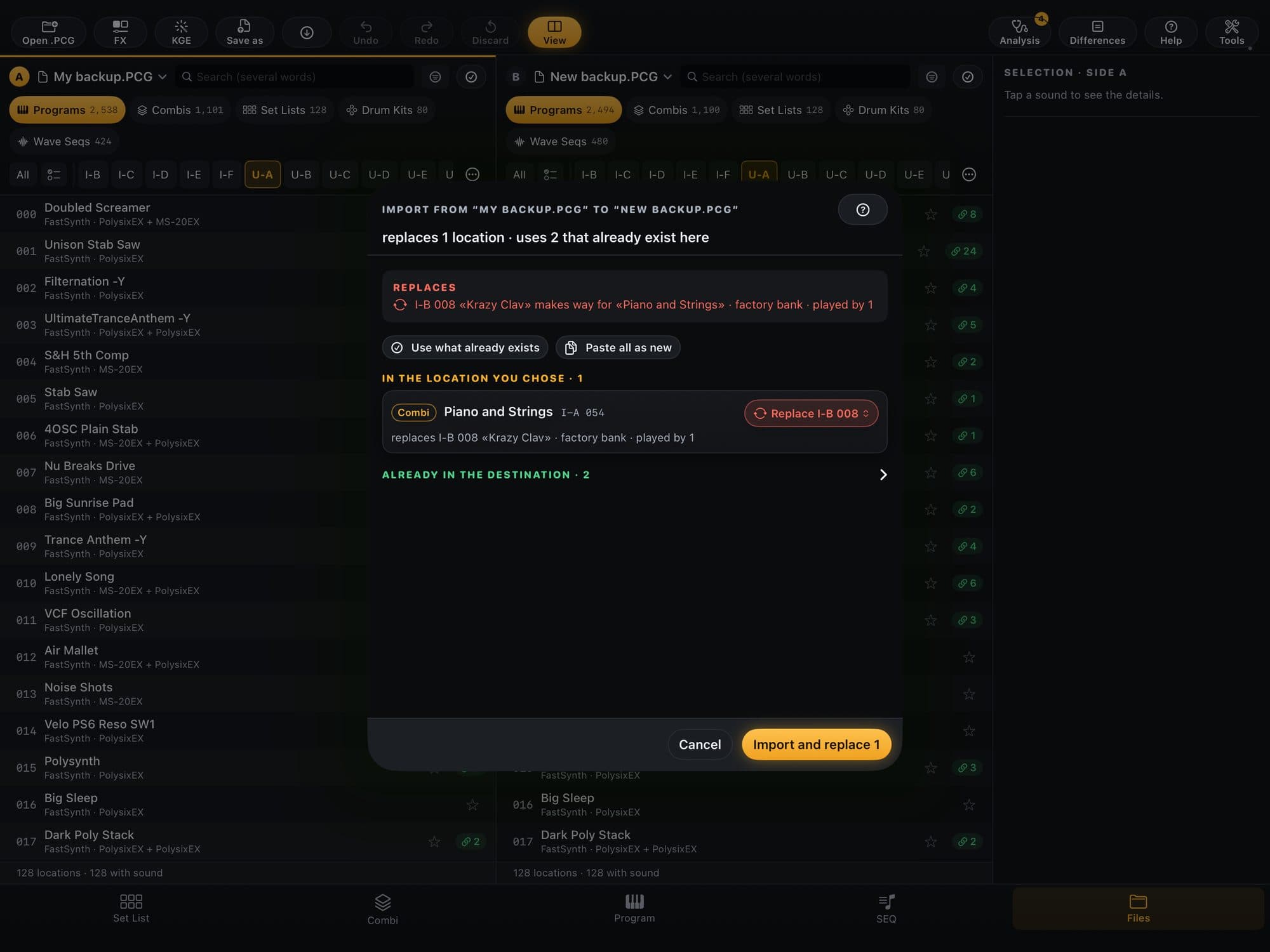
- 4The “Import from … to …” preview opens. Its first line says what it replaces and what already exists at the destination; “REPLACES”, in red, shows what is about to be swapped. On each line, choose “Use …”, “Replace …”, “Paste as new” or “Leave out”. To decide everything at once, use “Use what already exists” or “Paste all as new”.
- 5Tap “Import” (the button becomes “Import and replace N” when it swaps a slot). Nothing went to disk or to the keyboard yet: to keep it, use Tools › “Save file…”; for the keyboard, hold the slot and choose “Write to the keyboard…”.
Tip:The “KGE” icon in the top bar opens the KARMA GE area (.KGE files): you can copy, drag, rename and save user GEs. It has not been tested with the keyboard yet, and a .KGE goes to the keyboard by USB stick and DISK › Load.
Careful:An HD-1 with user samples only plays if you load the library (.KSC) on the keyboard; otherwise it comes out silent. The preview warns you.
Bring in sounds from another model
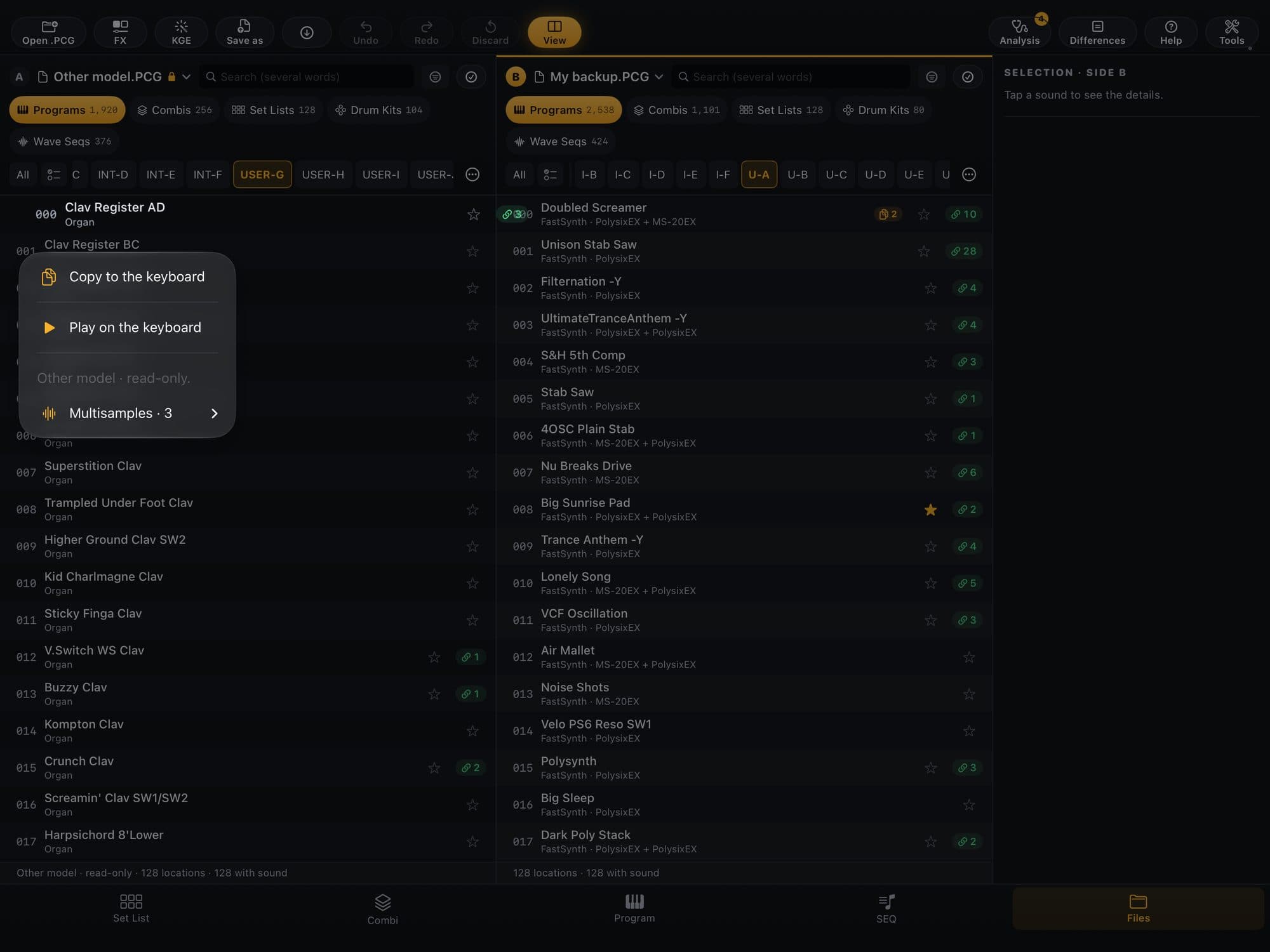
- 1Unpack the other model’s package (today, the NAUTILUS one) outside the app (if it comes as a .zip, unzip it first). In “Files” › “Open .PCG…”, choose the .PCG. It goes to the left side, read-only (a padlock next to the name and “Other model · read-only” at the bottom), and your keyboard’s .PCG, if it is already open, stays on the right side.
- 2Hold a sound from the other model and choose “Copy to the keyboard”. On the keyboard’s side, hold the slot and choose “Paste here” (or drag the sound straight over).
- 3Read the preview: each line says what the app converted — for example “Piano replaced by the keyboard factory one”, or that the other model’s arpeggiator was on and the keyboard has no such arpeggiator, so the sound plays without it. If a sound uses a sample from the other model that the keyboard has under another name, the “Similar” menu lets you pick the equivalent (“Use all similar samples” accepts them all): nothing changes on its own. Tap “Import”.
- 4A whole bank or Set List: hold the bank’s pill and choose “Copy the whole bank”; in the “Set Lists” tab, “Take the whole Set List…”. When you copy a Combi, its Programs come along.
- 5To hear a Program from the other model on the keyboard without writing anything, double-tap it (or hold it and choose “Play on the keyboard”): the app converts it on the spot and sends it to the keyboard’s edit memory. Like it? Tap Save and choose a slot in the Memory.
- 6To convert the whole file, open Tools (in the “Files” screen) › “Convert to the keyboard…” and choose “Save to a folder…”. On the keyboard, load it with DISK › Load. Keep in mind that we do not bring sample files (KSC) into the app — if needed, load them on the keyboard.
Careful:An HD-1 sound with user samples arrives without the samples, in the whole-file conversion too: it stays silent until you load the library (.KSC) on the keyboard. Loading the converted file on the keyboard has not been tested yet: back up the keyboard (DISK › Save All) first.
Play a DX7 voice on the MOD-7
- 1Open a Program that uses the MOD-7. If yours does not, tap the EXi chip and change the engine to MOD-7 (on the HD-1 the button does not exist).
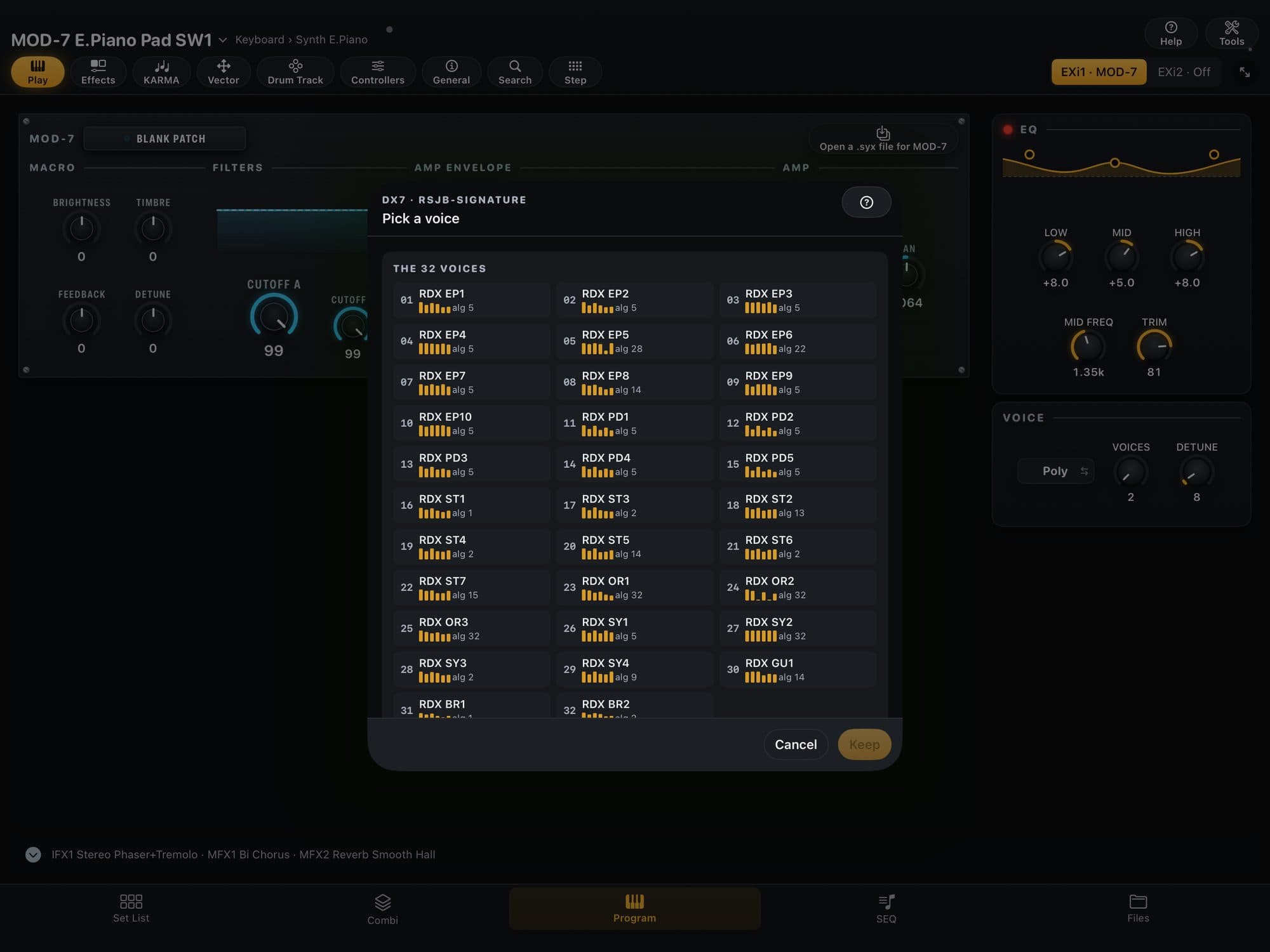
- 2In the MOD-7 panel, tap the “Open a .syx file for MOD-7” icon and choose the DX7 bank (.syx, with 32 voices). You can also drop the .syx on the app window or, on the Mac, use File › “Open DX7…”.
- 3In “The 32 voices”, tap a voice: it goes into the Program’s MOD-7 memory, on screen and (with the cable and “Follow the keyboard”) on the keyboard, in temporary memory. Tap another to switch.
- 4Like it? Tap “Keep” the voice. Do not like it? “Cancel” brings back the Program you had.
- 5To keep it on the keyboard, tap Save (see “Save and write to the keyboard”) or press WRITE on the keyboard.
Tip:In a single-engine Program, the voice becomes the whole Program: effects, EQ and the voice’s name. In a two-engine Program with a MOD-7, only the MOD-7 changes.
Careful:Envelope times arrive approximate (about ±1): the “Approximate” card shows what ended up approximate in each voice. The app reads only 32-voice banks (4,104 bytes).
Find duplicates and fix Combis
- 1In “Files”, tap the “Analysis” icon (the stethoscope). The badge counts how many kinds of “Broken” problem the file on the active side has.
- 2The list groups what the app found into Broken, Attention, Tidying up and Good to know: Combis with a track playing an empty Program, Set List slots pointing at nothing, duplicate Programs (same sound) and ones with the same name but a different sound. Tap an item to open its explanation and use “See the N locations in the list” to see which ones.
- 3To fix a Combi whose Program went missing, tap the ⚠ on its row (or hold the row and choose “Fix…”). The app shows “THE PROBLEM”, “WHERE THE RIGHT ONE IS” (in your backups) and “HOW TO FIX”; then tap “Review and apply ›”: nothing is written before the preview.
- 4To merge duplicates, open the “Duplicates (same sound)” item and tap “Merge duplicates…”. The app keeps the factory one; if there is none, the most used.
- 5For the app to find old versions of your sounds, open “Analysis” › “My backups…” › “Add folder…” (on the Mac, “Use this folder”) and “Read now”. It reads the .PCG files in the folder, up to 3 levels down, without changing any of them.
Tip:The Differences icon opens the second side and colors, slot by slot, what is the same and what changed between two files. “Check against another file…”, in the Tools of the “Files” screen, checks whether the Combi tracks and Set List slots play the same sounds as in the reference file.
Careful:“My backups…” only shows with a keyboard file on the active side. If the backups folder will not open, the app says so and offers “Choose again”.
iPhone: the stage in your hand
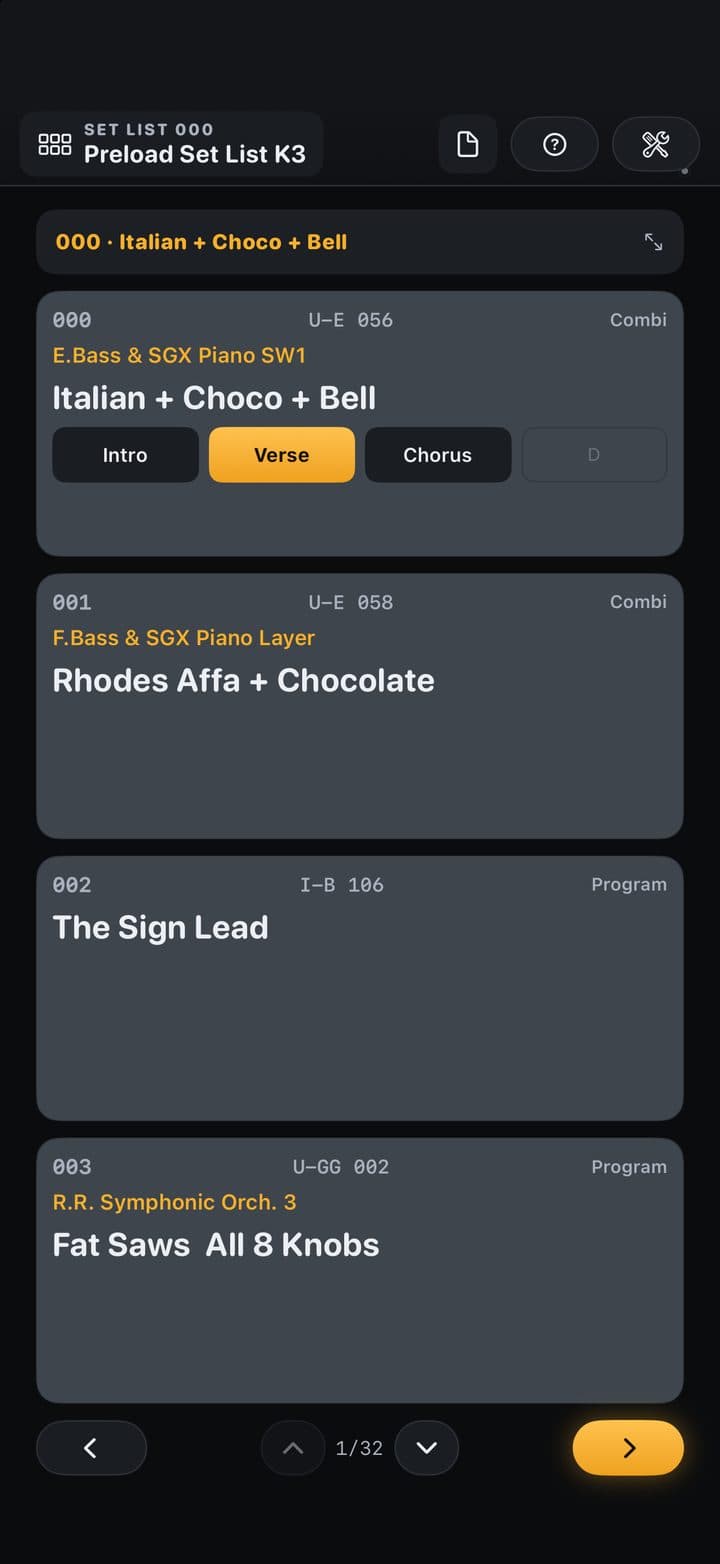
On iPhone, KR Editor is stage only: the Set List in Perform mode and the scenes. Program, Combi, KARMA and effects belong to the iPad and the Mac, in the same purchase.
- 1Open the app: the first screen is the Set List’s Perform. With no Set List yet, the “The stage on iPhone” card offers “Fetch from the keyboard”, “Open .PCG…” and “Connect the keyboard…”.
- 2To read the keyboard, connect the iPhone to the keyboard with the USB cable: the app reads the memory on its own (about 1 minute the first time). Without the keyboard, tap the file icon at the top and “Open .PCG…” — or send the .PCG to the app with AirDrop or the Files app (Open with…). With the same Apple ID and iCloud on, the Keyboard Memory also reaches the iPhone through iCloud: the newest version wins and, if you changed it on both devices, the app asks which one to keep.
- 3The stage shows 4 slots per page (1 column upright, 2×2 sideways). In the Set List name’s menu, “Slots on screen” switches “Pages of 4” (the default) to “Pages of 8”, “1 per row” or “2 per row”.
- 4Tap a slot to call it on the keyboard; tap a scene to call the scene. The arrows at the bottom step one slot at a time, the ↑ and ↓ arrows change page, and the text at the top opens the Comment Pad. Without the keyboard connected, the stage rehearses: the slot lights up, but nothing goes to the keyboard.
- 5To move, copy or rename a slot, hold it: the menu has “Cut”, “Copy”, “Paste here”, “Move to…”, “Rename…” and “Comment…”.
Tip:Scenes you store on the Mac and the iPad reach the iPhone through iCloud.
If something does not respond
A question that is not here? Write to app@rsjb.com.br.
- 1The app cannot see the keyboard: check the USB cable and, on the keyboard, GLOBAL › MIDI › Enable Exclusive. Then open Tools › “Keyboard & MIDI…” and check “Send to” and the “Keyboard Global MIDI channel”.
- 2Knobs do not change the sound: look at the light next to the name. Gray: no cable or “Follow the keyboard” is off (in Tools). Amber ring with ▶: the keyboard has another sound; tap the light. Red with “!”: a change did not arrive; tap the light to send the whole sound.
- 3The keyboard is in SEQUENCER, GLOBAL, DISK or SAMPLING: the app does not take it out of there on its own and says so. Put the keyboard back in PROGRAM, COMBINATION or SET LIST.
- 4The Set List does not change slots over MIDI: on the keyboard, in GLOBAL › MIDI, turn on Program Change and Bank Change.
- 5The keyboard refuses the write with “protected object”: turn off Memory Protect (GLOBAL › Basic Setup) and write again.
- 6A slot changed on the keyboard after the app read it: fetch the memory again (Tools › “Fetch from the keyboard”) before writing over it. If that would throw away changes you have not saved, the app asks; choose “Save backup first…”.
- 7The app’s notices live in Tools › “Messages…”: “ON THIS SCREEN NOW” and “EARLIER”.
- 8The pedal does nothing: on the “PEDAL” card (Program › “Controllers”; Combi › “General” › the controllers drawer), check whether it shows “CC off in Global” (turn on GLOBAL › MIDI › Control Change Enable) or “Local Off” (turn Local Control on).
- 9The app says a bank of the Memory did not open: connect the cable and use Tools › “Read from the keyboard”, which brings the bank in again.
- 10KARMA is on but does not play: in the Combi, the part’s card shows why (the KARMA key off, the part’s Run off, the track muted or on another channel…) and already brings the button that fixes it: “Turn KARMA on”, “Turn the part on” or “Unmute”.
KORG, KRONOS and NAUTILUS are trademarks of KORG Inc.; DX7 is a trademark of Yamaha Corporation. KR Editor is an independent app, not affiliated with or endorsed by KORG or Yamaha.
Use KR Editor at your own risk: make a complete backup of the keyboard before writing to it. To the fullest extent permitted by law, RSJB is not liable for data loss, malfunctions or damage to the keyboard (including rendering it inoperable). Details are in the Terms of Use, at rsjb.com.br/en/terms.
Related app
KR Editor
Kronos editor for iPad & Mac — Program, Combi, Set List and .PCG backups, with iPhone on stage